Help / Scan station
Release an order to the courier
Scan the bag, check the address, release the order, and print the bag label.
For: Pharmacy techRelease an order to the courier
Read the transcript
A bag comes across the counter, with its Rx label.
I scan the label.
The order opens, with the patient and the address.
I check the name against the bag, then the street, city, and ZIP.
Courier is already selected, and this bag goes by our courier.
I leave the tier alone.
TotePath picks Same Day or Next Day from our same-day cutoff time.
Release and print.
The label prints. I stick it on the bag.
The scan box is ready for the next bag.
Over here, Released today. It is the top row.
Film: Release an order to the courier. Watch it online at https://totepath.com/docs/station/release-to-courier
Release is how a finished order goes to the courier. You do it for every bag the courier's driver will take. Releasing sends the order to the courier and prints the label for the bag.
Make sure the station is in Release & print mode (the default). If the screen is new to you, read The Scan station at a glance first.
Steps
- Click in the scan box and scan the Rx label on the bag. You can also type the order number and press Enter.
- The order opens on the bench. Check that the patient name matches the bag.
- Check the address: Street address, Apt / unit, City, State, ZIP and Phone. If you change anything, click Save changes & re-check. A "Saved." message appears.
- Leave Courier selected.
- Look at Same Day and Next Day. One is already selected. Leave it alone unless you know the order must go the other way. See the next section.
- Leave Note (optional) blank unless you have something to add. It is saved with the order and is not printed on the label.
- Click Release & print. You can also press Enter with the scan box empty.
- Take the label from the printer and put it on the bag.
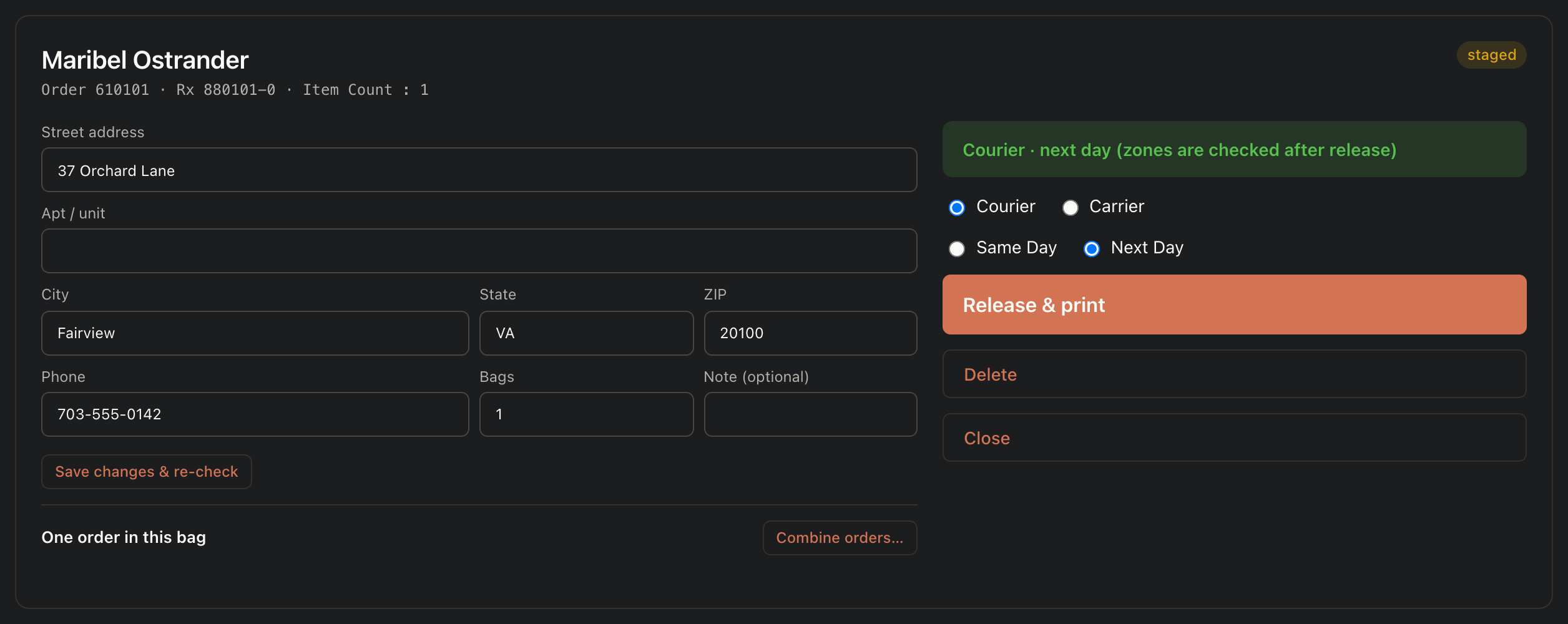
Same Day or Next Day
One of the two is already selected when an order opens. TotePath picks it from your pharmacy's same-day cutoff time (set by the courier): Same Day before the cutoff, Next Day after it. The line above the buttons says the same thing, for example "Courier · same day" or "Courier · next day".
Choose the other one yourself only when you know the order must go that way. Your choice overrides the cutoff.
What you will see
- A green message: "Order 610150 released → courier · same day. Label prints in a moment." The order number will be yours, and after the cutoff it says next day.
- The bench closes and the scan box is ready for the next bag.
- In Waiting for release, the order shows "releasing…" until the release is done.
- A moment later the label prints, and a second message appears, for example "Order 610150 → onfleet (Same Day) · 1 label(s) sent to your printer name". The word after the arrow names where the order went: onfleet means the courier, shipstation means a carrier.
- The order moves to Released today, which lists orders released in the last 24 hours.
Where it goes next: the courier has the order. When the driver collects the bag, you scan it out. See Handoff to the courier.
If something goes wrong
- Nothing is found when you scan. The export may not have arrived yet. See The Scan station at a glance.
- The label does not print. A red message says "LABEL PRINT FAILED" with the printer name and the reason. The order is already released and stays under Released today. Fix the printer (on, labels loaded, connected). The station tries again by itself about once a minute, or you can open the order from Released today and click Reprint labels. See Bag labels.
- A release fails. The bench closes as soon as you click Release & print, so a failure shows later. A red Needs attention strip appears above the scan box. Click the row to open the order on the bench, where Release failed shows with the reason. See Needs attention. The buttons are:
- Retry sends it again.
- Edit address lets you fix the address.
- Send by carrier appears when the address is outside the courier's zones. See Send an order by carrier.
- Cancel clears the bench and leaves the order waiting. It stays under Needs attention until you release it.
- You released the wrong order. See Fixing mistakes.