On this page
Help / Web portal
Imports
See the order files your pharmacy PC has sent to TotePath, and what a failed file or a skipped row means.
For: Pharmacy managerThe Imports page is the receipt for every order file your pharmacy sent. Open it when an order you expected is not on the Dashboard, or when you want to confirm that today's file arrived.
How files arrive
You do not upload files in the portal. Files arrive on their own:
- PrimeRx writes an order file into its export folder on the pharmacy PC.
- The TotePath Agent on that PC watches the folder. When a new file has finished being written, the agent sends it to TotePath. This usually takes a minute or two.
- TotePath reads the file and creates one Staged order for each valid row.
- The agent moves the sent file into a
processedfolder inside the export folder, unless your pharmacy's settings leave files in place.
Each pharmacy has one upload token. Every agent at that pharmacy uses it, and it ties the file to the right pharmacy. The page text in the portal still mentions SFTP in a few places. That is old wording. Files do not arrive by SFTP today.
The import list
Click Imports in the top menu. The page heading is Imports. The list is newest first, 20 per page.
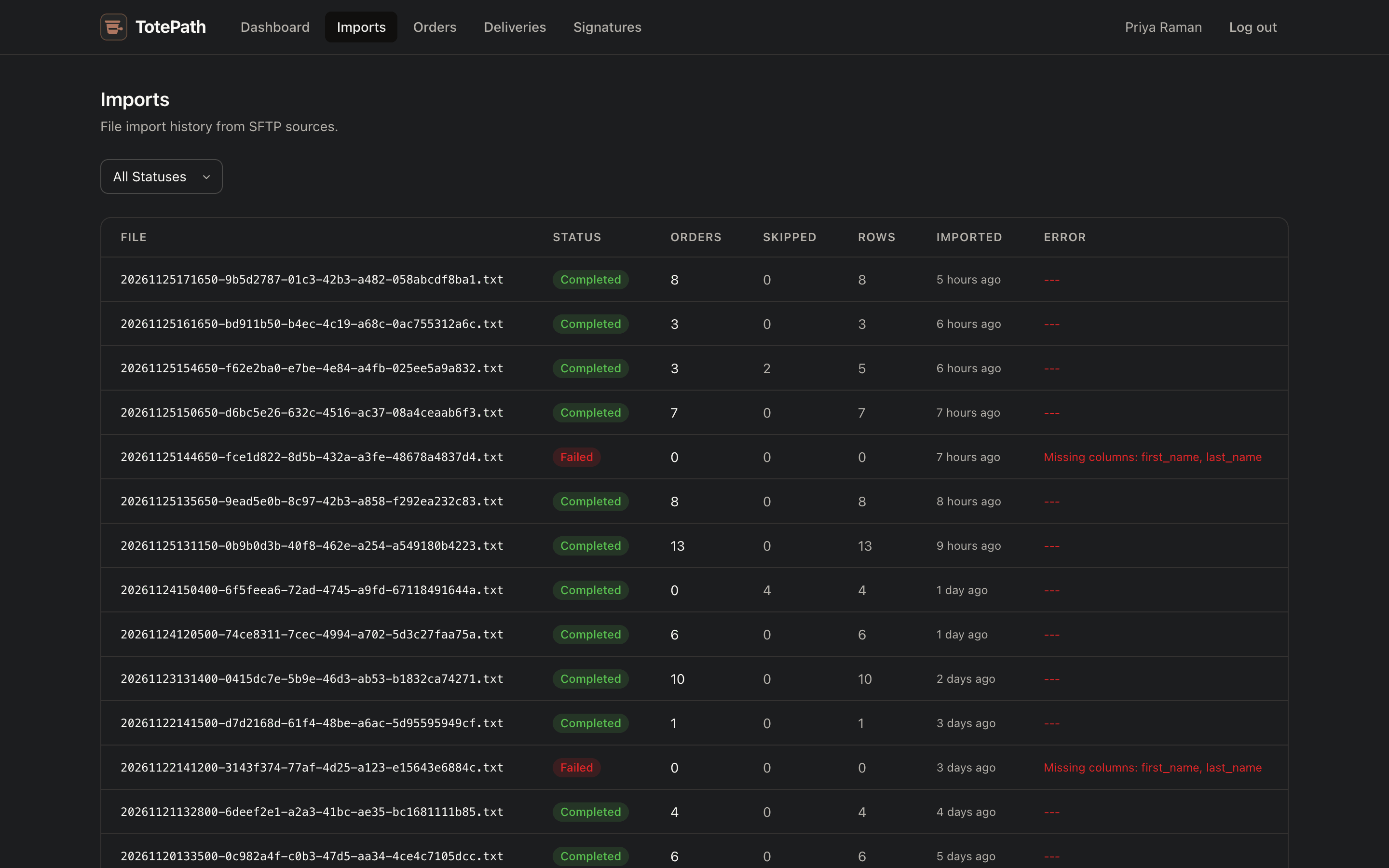
| Column | What it shows |
|---|---|
| File | The name TotePath gave the file. |
| Status | Processing, Completed or Failed. The filter also offers Pending, but you do not normally see it. |
| Orders | How many orders were created from the file. |
| Skipped | How many rows did not become orders. |
| Rows | How many rows the file had, not counting blank lines. |
| Imported | How long ago it arrived, for example "5 minutes ago". |
| Error | The reason, when the file failed. A dash otherwise. |
The All Statuses drop-down narrows the list to one status. Each time a file arrives it normally goes from Processing to Completed within moments.
If you work at more than one pharmacy, use the drop-down at the top right that shows All Locations or a pharmacy name to see one pharmacy's files.
The import detail
Click a row. A panel opens on the right.
- The top shows the file name, the status and the pharmacy.
- Import Details shows File, Imported (date and time), Total Rows, Orders Created and Skipped.
- Error appears only when something went wrong. It holds the reason in a red box.
- Orders lists each order that came from this file, with its order ID, how many prescriptions it has, and its current status. Click one to open its order panel. See Order details and actions. If no orders were created, it says No orders were created from this import.
What the problems mean
A failed file
A file marked Failed created no orders. The Error column says why. The two reasons you can see are:
| Error | What it means | What to do |
|---|---|---|
| Empty file | The file had no header line plus at least one order line. | Check PrimeRx's export. Export the orders again. |
| Missing columns: a list | The first line of the file does not have every column TotePath needs. The required columns are the order ID, patient ID, first name, last name, street address, city, state and ZIP. | Tell your TotePath contact. The PrimeRx export settings need to be corrected. |
Skipped rows
A skipped row is a line in the file that did not become an order. The file itself is still Completed. A row is skipped when:
- It is a duplicate. An order with the same order ID already exists at this pharmacy. TotePath keeps one order per order ID per pharmacy, so a file that is sent again does not create duplicates. This also applies to an order that was deleted at the scan station. A new export of the same order ID is skipped, so a deleted order is not brought back that way.
- It has no order ID.
- The row could not be read.
A Skipped number above 0 is not an error in itself. If Orders plus Skipped equals Rows, every row is accounted for. The Imports page does not say which rows were skipped or why. If you expect an order and it was skipped, look for the same order ID on the Dashboard first.
A file that never shows up
If the Imports page has no entry for a file you expect, the file did not reach TotePath. Check:
- PrimeRx actually wrote the file, in the export folder.
- The pharmacy PC is on and the TotePath Agent is running. If you can open the agent, its Files page lists every file it has seen and whether each was uploaded.
- Under Settings, Locations (owners only), the pharmacy's agent shows a status such as Online, Offline or Folder unreadable. A warning there says the agent cannot read the PrimeRx export folder or has files waiting to upload.
What you will see
- No imports yet. Files will appear here once SFTP ingestion is configured. appears when no file has ever arrived for the location you picked. It also appears when the status drop-down matches nothing. Set it back to All Statuses first. Ignore the SFTP wording. It means no file has reached TotePath yet.
- A Completed file with Orders at 0 and Skipped above 0 usually means every row was a duplicate: the orders were already in TotePath. Rows with no order ID, or rows that could not be read, are skipped too.
If something goes wrong
- The status stays Processing. Wait a minute and reload the page. If it does not change, tell your TotePath contact.
- The newest file is old. The pharmacy PC may be off, or PrimeRx has not exported anything since. Check both, then check the agent.
- An order is on the Imports detail but not where you expect. Click it in the Orders list. The order panel shows its status and Event Log. A released order is listed on the Dashboard and, after delivery, on the Orders page.