On this page
Help / Web portal
What the patient sees when asked to sign
The email and signing page a patient gets after delivery, so you can answer their questions.
For: Pharmacy techA patient may call and say "I got an email asking me to sign for my medicine." This page shows what they receive and what each step asks for, so you can walk them through it.
The staff view of the same process is in Signatures.
The email
The sender shows as "pharmacy name (via TotePath)". The pharmacy name is the location's name. Replies go to the pharmacy's email address when one is set for the location (the Pharmacy email field on the location page). If none is set, replies are not monitored, so an owner should fill in Pharmacy email for every location. The subject is "Please confirm your delivery from" followed by the pharmacy name. A reminder starts with "Reminder:".
The email says:
- Heading: Please confirm your delivery.
- The pharmacy delivered the order on a date, and needs the patient's signature to confirm they received it. It says this takes less than a minute.
- A button: Confirm and sign.
- A line that the patient will be asked for the ZIP code the order was delivered to before anything is shown.
- A line to contact the pharmacy, with its phone number when one is on file, if they did not receive the delivery or have a question.
A reminder also says that the pharmacy still needs the patient's confirmation.
The signing page
The page works on a phone. It is headed Delivery confirmation, with the pharmacy name and the delivery date.
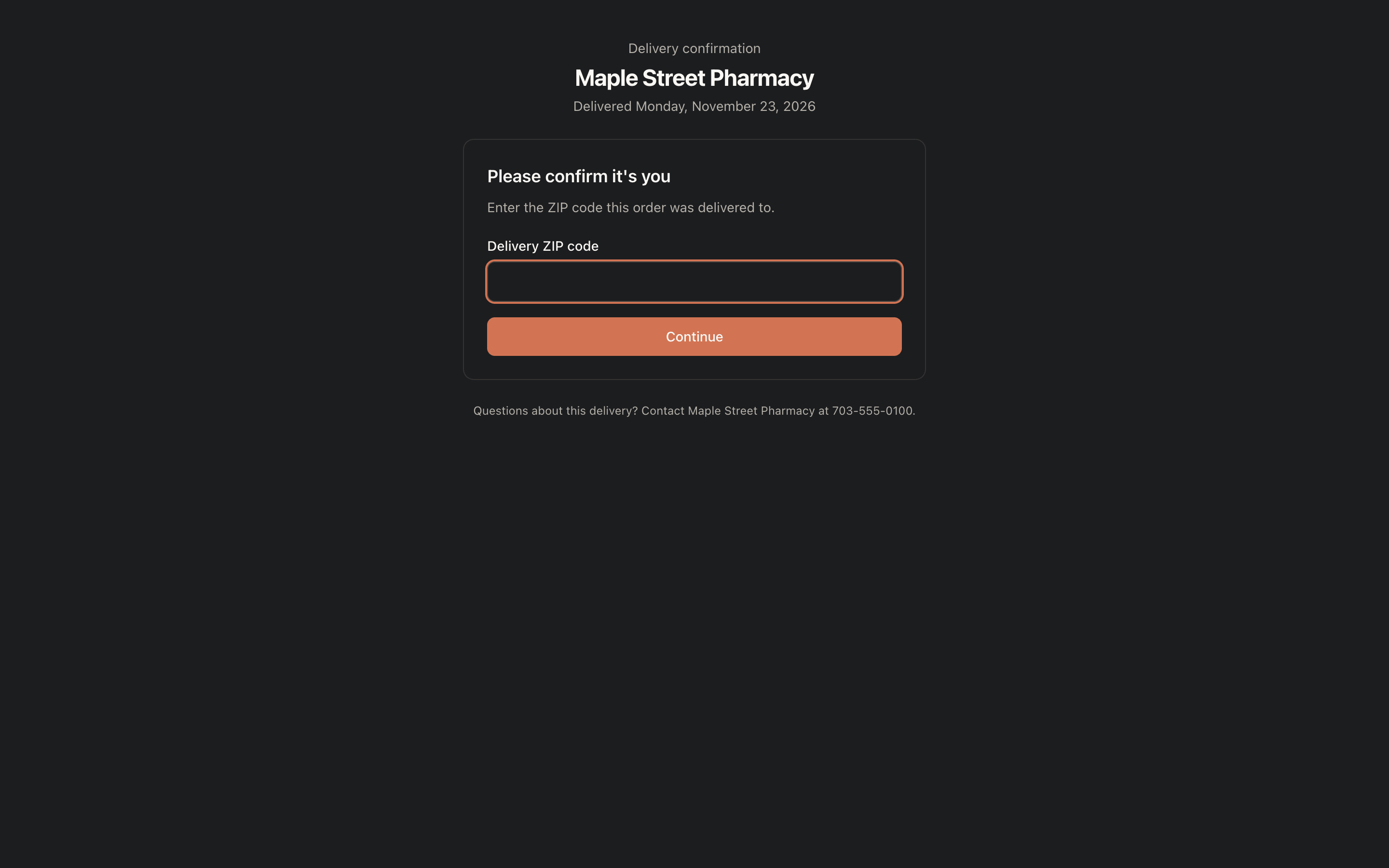
Step 1: ZIP code check
The patient sees Please confirm it's you and "Enter the ZIP code this order was delivered to." They type the ZIP into Delivery ZIP code and tap Continue.
- A wrong ZIP shows "That ZIP code does not match this delivery."
- After 5 wrong tries, the link pauses for 15 minutes. The page says Too many attempts and "For your security this link is paused for a few minutes. Please try again later."
If a patient is stuck, ask which address the order was delivered to. The ZIP is that address's ZIP code.
Step 2: Sign
After the check, the page shows Confirm your delivery, "Delivered to" the address, and what was delivered. The patient:
- Ticks the box confirming that they, or someone on their behalf, received the delivery from the pharmacy for that order, and agreeing to sign electronically.
- Types their name into Your full name.
- Draws their signature in the box under Sign below. Clear erases it.
- Taps Sign and confirm.
If something is missing, they see "Please sign in the box." or "Please confirm the statement above."
Step 3: Done
The page says Thank you and "This delivery was confirmed on (date). There is nothing else you need to do."
If the signature is no longer needed
If the driver already collected a signature, or the delivery was undone, the page says No signature needed and "This delivery no longer needs your signature. There is nothing you need to do."
At the bottom of the page, the patient sees "Questions about this delivery? Contact" the pharmacy, with its phone number.
What TotePath records
When the patient signs, TotePath saves their typed name, their drawn signature, the confirmation they agreed to, the time, their IP address and their browser. Staff see the signature in the order panel and on the PDF receipt under Patient e-signature.
Common questions
I did not get the delivery. The patient should not sign. They should call the pharmacy. Staff can check what happened. See Proof of delivery.
I lost the email. Staff can resend it from the order panel. See Signatures.
The link says it is paused. Wait 15 minutes and try again with the right ZIP code.
Will I get more emails? If they have not signed, TotePath sends a reminder every 7 days, up to 4 reminders.
If something goes wrong
If the patient cannot get past the ZIP check, confirm the delivery address on the order. If the email never arrived, ask them to check spam, then check the Delivery Signature section on the order. If it says Email undeliverable, resend to a correct address.