On this page
Help / Web portal
Find an order
Look up a courier delivery on the Orders page by PrimeRx order ID or recipient name, and know when to use the Dashboard instead.
For: Pharmacy techFind an order for a patient
Read the transcript
A patient calls, and she wants to know where her medicine is.
I start in Orders.
I type her name, Slade, and search.
Nothing. Orders only holds deliveries the driver has finished.
For anything still at the pharmacy, I use the Dashboard.
Slade again.
Submitted, and on the shelf. It is waiting for the driver.
I open it.
Here is the tracking number.
Handoff says it is still on the shelf.
Further down, the Event Log.
It lists the order created, released, and the label printed.
The label on her bag is smudged.
The printer at my counter is already chosen.
Reprint label.
The label goes to the printer at my counter, and the order does not change.
Film: Find an order for a patient. Watch it online at https://totepath.com/docs/portal/find-an-order
Use the Orders page when a patient, a driver or your manager asks about an order that went out with the courier's own drivers (OnFleet), and you want the delivery record: who received it, when, which route, and the proof of delivery.
For orders that have not left the pharmacy yet, and for every order sent by a carrier (ShipStation), use the Dashboard instead.
A patient calls about an order that has not left the pharmacy yet
A patient phones to ask where her medicine is. The order is probably still at the pharmacy, so the Orders page will not have it (see below). Search the Dashboard instead.
- Click Orders and search for her name. If the page says No orders match and her name, that is expected: Orders only lists deliveries the driver has finished.
- Click Dashboard in the top menu.
- In the search box, Search order ID, Rx number, or patient…, type her name. The table narrows to her order.
- Check the Status. Submitted with an On shelf pill means the order was released and is waiting for the driver.
- Click the row. The order panel slides in from the right.
- In Delivery, read Tracking #.
- In Handoff, read the yellow On the shelf badge and not yet scanned out to the courier. That tells you it is still at the pharmacy.
- Scroll down to Event Log for what happened and when, for example the order created, released, and the label printed.
- If her label is smudged or lost, use Reprint label under Actions. The printer at your counter is usually already chosen. See Order details and actions for the steps and what can go wrong.
The reprint line under the button reads Waiting for printer and changes to Printed once the pharmacy PC has printed the label. The order itself does not change.
Why the order may not be here yet
The Dashboard and the Orders page list different things, and both use the word "orders".
- The Dashboard lists orders from the moment they arrive from PrimeRx.
- The Orders page lists delivery records. A delivery record is created when the courier's driver finishes the stop, either delivered or not delivered.
So an order you released ten minutes ago is on the Dashboard but not on the Orders page. A courier order appears on the Orders page after the driver completes the stop. The page says so when it is empty: No delivered orders yet. Orders will appear here once deliveries are completed and recorded.
Orders sent by a carrier (ShipStation) never appear on the Orders page, even after they are delivered. TotePath makes no delivery record for them. Look them up on the Dashboard. Open the order there and read Tracking # and the Tracking link in the Delivery section of the order panel.
If you need to find an order that is still on the shelf or still waiting for release, search for it on the Dashboard.
Search for an order
- Click Orders in the top menu.
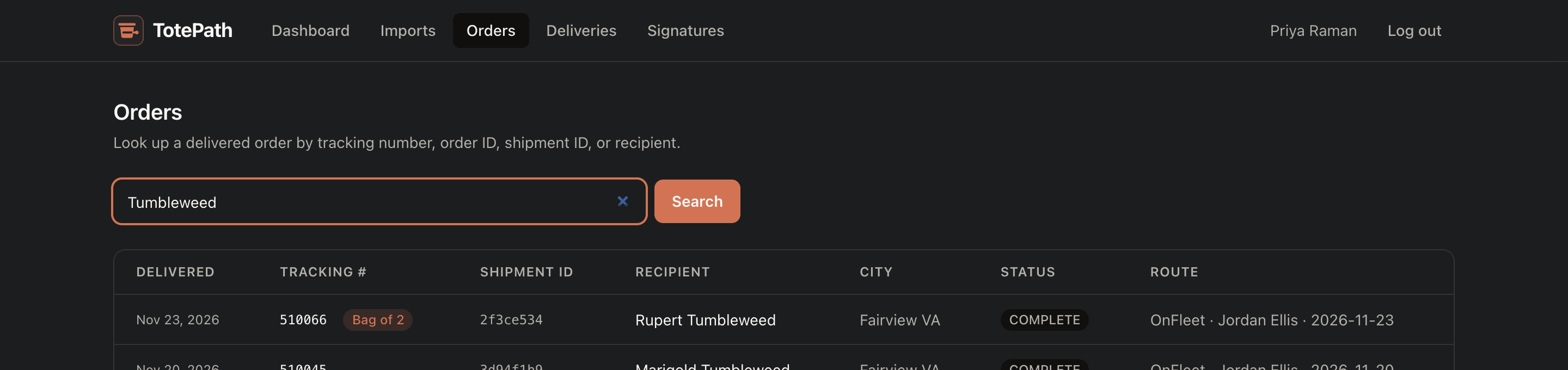
- Click in the search box. It says Tracking number, order ID, shipment ID, or recipient name… and is ready when the page opens.
- Type at least 3 characters.
- Press Enter, or click Search.
The page searches when you press Enter or click Search. It does not search as you type.
The list is long and not in a useful order, so search. Do not scroll to find an order.
What you can search by
| You type | What it finds |
|---|---|
| Digits only | A Tracking # (match from the start, so you can type the first part or paste the whole number), a Shipment ID (whole number), or a PrimeRx order ID (whole number; leading zeros are ignored). |
| A PrimeRx order ID of an order that was combined into a bag | The bag that order travelled in. |
| A name, or part of a name | Delivery records where the recipient's name contains each word you typed. ode quill finds Odette Quillfeather. |
For deliveries by the courier's own drivers, the Tracking # column holds the PrimeRx order ID. Search by that number, or by the recipient's name.
The Shipment ID column for those deliveries holds the courier system's short ID. It is usually 8 characters with letters in it, such as c4e9a27b. The same short ID is the Tracking # in the order panel on the Dashboard. If it has letters in it, you cannot search for it: anything that is not all digits is treated as a name, so it finds nothing.
Limits
- At least 3 characters. With fewer, the page says Enter at least 3 characters to search. and does not search.
- You do not search by Rx number here. Rx numbers are searched on the Dashboard.
- Only the delivery to the patient is listed. The driver's pickup at the pharmacy is not a row on this page.
- Only what you may see. Results are limited to your locations. Use the drop-down at the top right that shows All Locations or a pharmacy name to change them.
Jumping straight to the order
If you type a whole tracking number, shipment ID or PrimeRx order ID and it matches exactly one record, the page opens that order for you and skips the list. If more than one record matches, or you typed only the start of a tracking number, you get the list.
Read the results
Results are listed 20 per page. They are not reliably newest first: a delivery whose arrival time was not recorded sorts after those that have one, and this includes many recent courier deliveries. Search for the order by its PrimeRx order ID instead of browsing. Use the previous and next links under the table to move between pages. The page does not show a total.
| Column | What it shows |
|---|---|
| Delivered | The date the driver arrived at the stop. When no arrival time was recorded, it shows the date of the route instead. |
| Tracking # | For courier deliveries, the PrimeRx order ID. A blue Bag of N badge means N orders were combined into one bag and delivered together. |
| Shipment ID | The delivery record's own ID. For courier deliveries it is the short ID, usually 8 characters with letters, which you cannot search when it has letters in it. |
| Recipient | Who the delivery was for. |
| City | The delivery city and state. |
| Status | The driver's result for the stop, shown as the courier system reports it. For current deliveries it is COMPLETE or FAILED. |
| Route | The route the driver was on. |
Click a row to open the order page.
The order page
The order page shows one delivery record in three parts. It has a back link, Orders, at the top, and a PDF Receipt link that downloads the receipt.
- Order has the tracking number, shipment ID, quantity and service. For a bag it shows the Bag of N badge and lists the combined orders. Click an order number there to open its panel on the right.
- Delivery has the status, recipient, address, arrival and departure times and the time window. Arrived can be a dash for a courier delivery. Departed is the time the driver completed the stop. When the driver captured photos or a signature, Proof of Delivery shows them. Click one to open it full size in a new tab. A Driver Report block shows a failure reason, notes and scanned barcodes when the driver recorded them.
- Route has the route name, date and driver, with View full route. Delivered Together at This Stop lists other orders delivered at the same stop.
Proof of delivery explains the photos and signature in more detail. Deliveries explains routes.
What you will see
- No orders match "your search". Check the tracking number and try again. Nothing matches. Check the digits and the drop-down at the top right that shows All Locations or a pharmacy name.
- A Bag of N badge next to a tracking number means the order shares a bag with others. That is normal.
If something goes wrong
- The order is not on the list. The driver may not have finished the stop yet. Look it up on the Dashboard. If the status is Submitted, it has been released and is waiting for, or with, the courier.
- A carrier (ShipStation) order is not on the list, even though it was delivered. Carrier orders never appear on the Orders page. Use the Dashboard and read Tracking # and Tracking in the order panel.
- A name search finds nothing. Try a longer part of the name, for example the last name, and check the spelling on the order.
- A number finds nothing. Search by the PrimeRx order ID. Do not type a short ID that has letters in it, from the order panel, and do not type an Rx number here. Check you are on the right location.
- You see a "not found" page when you open an order. The order belongs to a location you cannot see. Switch locations or ask your manager.