On this page
Help / Administration
Invite and manage users
Add people to TotePath, choose what they can see, and fix sign-in problems like a lost phone.
For: OwnerInvite a user and set up a location
Read the transcript
I run the courier account. A new hire is starting, so I open Settings.
Users.
Invite User.
His name.
And his email.
His role is Staff.
And one location, Maple Street.
Send invitation. The link in his email works for seventy two hours.
Next, Locations.
I open Maple Street Pharmacy.
Down here is Agents. Each computer running the agent, and whether it is online.
The front counter's printer is set here. A change reaches that computer within a few minutes.
Now Sort Zones.
Each bag label prints a zone, looked up from the delivery ZIP.
A ZIP that is not on the list prints zone unknown.
To change the whole list, I choose a CSV file.
Upload and replace.
Twelve ZIPs, in six zones, are loaded.
Film: Invite a user and set up a location. Watch it online at https://totepath.com/docs/admin/users
Use this page when a new person joins the pharmacy or courier team, when someone changes locations, or when someone loses the phone that holds their sign-in code. Only a Tenant Owner can do this. Location Managers and Staff do not see Settings in the top bar.
TotePath has no public sign-up page. Every account starts with an invitation from you.
Roles
| Role | What the person sees |
|---|---|
| Tenant Owner | Every location in your business. Can open Settings and Billing. |
| Location Manager | Only the locations you assign. Gets alert emails for those locations (see Alerts and emails). |
| Staff | Only the locations you assign. |
Invite a user
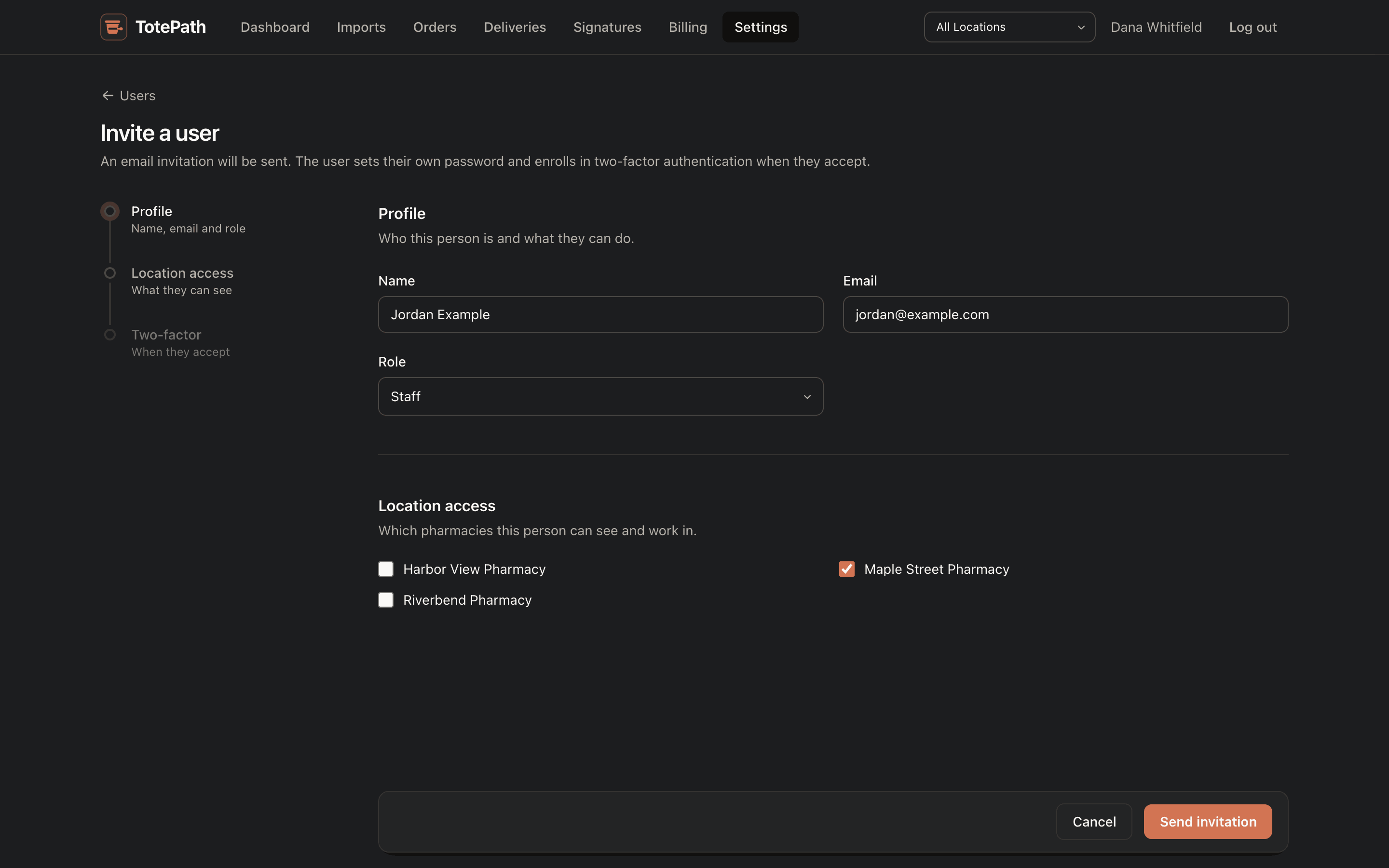
- Click Settings in the top bar, then Users.
- Click Invite User.
- Fill in Name and Email. The email cannot already belong to a user or to an open invitation.
- Pick a Role.
- Under Location access, tick the locations this person works at. For a Tenant Owner the form says owners can access every location, so there is nothing to tick.
- Click Send invitation.
What the invited person receives
The person gets an email with the subject You have been invited to TotePath. It has an Accept invitation button. The link works for 72 hours.
When they click it, they:
- See Set your password and choose a password.
- Click Activate account. They are signed in.
- See Set up two-factor authentication. They scan the QR code with an authenticator app, save the recovery codes, enter the 6-digit code, and click Confirm & continue.
Two-factor sign-in is required for every account. Nobody can reach the Dashboard until it is set up, and it cannot be switched off.
Pending invitations
Invitations that have not been accepted are listed under Pending Invitations on the Users page.
- Resend creates a new link that lasts another 72 hours. The page says Invitation resent to the email address.
- Revoke cancels the invitation after you confirm. The old link stops working.
- A red Expired next to an invitation means the 72 hours ran out. Use Resend.
Change a user
- In Settings > Users, click the person.
- Change their name, role or Location access.
- Click Save changes.
Lost phone or new phone
A signed-in person can replace their own authenticator. They click their own name at the top right, confirm their password, then click Reconfigure under the authenticator section.
If they cannot sign in at all:
- Open the person under Settings > Users.
- Find Two-factor authentication. It shows Enrolled.
- Click Reset 2FA and confirm.
The next time they sign in, TotePath makes them set up two-factor again. You cannot reset your own two-factor this way.
Forgot password
Tell the person to click Forgot password? on the sign-in page. They get an email with a reset link. There is no screen where an owner sets someone else's password.
Remove a person
Open the person and click Delete user under Account. TotePath asks you to confirm because it cannot be undone. You cannot delete your own account.
If something goes wrong
- The person says the link is invalid or has expired. Use Resend and ask them to use the newest email only.
- They never got the email. Check their spam folder, and check the address on the invitation for typos. If it is wrong, Revoke it and invite again.
- The email address is rejected as already used. That person already has an account or an open invitation. Look in the user list and in Pending Invitations.
- A user cannot see an order or a location. Open their user page and check Location access.