On this page
Help / Scan station
Hand bags to the driver
Scan each bag as the driver takes it, so the pharmacy has its own record of what left and what is still on the shelf.
For: Pharmacy techHand bags to the courier
Read the transcript
The driver is here for the pickup. I switch to Handoff to courier.
On the shelf are four bags I released that the driver has not taken yet.
I scan a bag as the driver takes it.
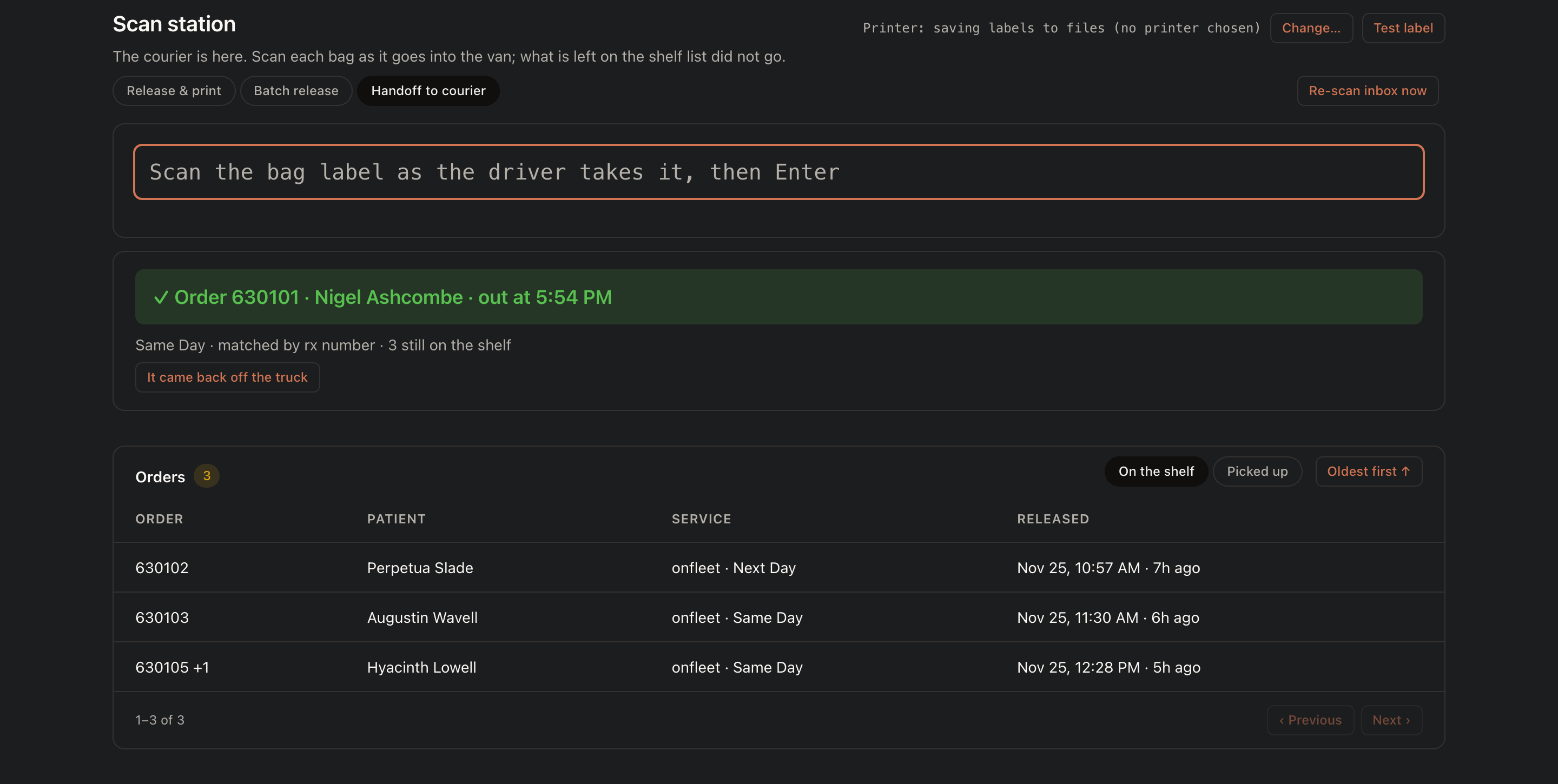
Green. It is out, with the time. Three are left on the shelf.
Now a bag that went out this morning. I scan it.
Amber. Already out.
Now a bag I never released. I scan that one.
Red. This bag stays. It has to go through the station first.
Picked up shows what has left in the last day.
The driver hands one back. I click Came back.
Click On the shelf, and it is there again.
Nothing here changes an order. It is our own record of what left.
Film: Hand bags to the courier. Watch it online at https://totepath.com/docs/station/handoff
Use Handoff to courier when the driver arrives for pickup. You scan each bag as it goes into the van. The station tells you at once if a bag should not leave, and the On the shelf list shows what is still waiting.
This is the pharmacy's own record. Scanning a bag out does not change the order's status and sends nothing to the courier. The driver's own scans in the driver app are separate.
Hand over the bags
- On the Scan station tab, click Handoff to courier at the top. The subtitle changes to: The courier is here. Scan each bag as it goes into the van; what is left on the shelf list did not go.
- The Orders list becomes On the shelf. It holds every bag released to the courier that has not been scanned out, however old. A bag released yesterday for today's run is normal.
- Scan the barcode on the bag label as the driver takes the bag. The scan box says Scan the bag label as the driver takes it, then Enter. A scanner types the code and presses Enter for you. You can also type the code and press Enter.
- Read the result strip under the scan box (see below) before you hand over the bag.
- Repeat for each bag.
- When the driver has left, look at On the shelf. Anything still listed did not go.
When the list is empty it says Nothing on the shelf: every bag released to the courier has been scanned out.
What the result strip means
| Colour | What it says | What to do |
|---|---|---|
| Green | ✓ Order (or Bag) and the number, the patient, and out at the time. Below it: the service and how the code matched, then how many bags are still on the shelf. | Hand over the bag. |
| Amber | Already out: order and the number, with the patient. | The bag was already scanned out. The first scan is kept. Check you are not scanning the same bag twice. |
| Red | STOP — this bag stays: order and the number, with the reason. | Do not hand the bag over. Read the reason and ask your pharmacy manager. |
A red strip can also read:
- No order at this pharmacy matches and the code you scanned, with Another pharmacy's bag, or a label from before TotePath. It stays here.
- Scan failed, with Try again; if it keeps failing, the station cannot reach TotePath. Scan again. If it keeps failing, see Station troubleshooting.
- This TotePath server cannot scan out yet, with Ask for the server to be updated; the scan was not recorded. TotePath itself needs an update, so tell your manager. This is not a connection problem.
A bag that ships by carrier also gets a red STOP. The reason reads order and the number ships by carrier and the service, not with the courier. That bag goes with the carrier pickup, so keep it on the shelf for the carrier.
A STOP means TotePath does not think the courier should take that bag. The reason is written for you in plain words. If the reason does not make sense to you, keep the bag on the shelf and ask.
When a bag comes back
If the driver hands a bag back right after you scanned it, click It came back off the truck under the green or amber strip. The bag goes back to the On the shelf list and a message reads Order and the number is back on the shelf list.
If you notice later, click Picked up above the list. It shows bags scanned out in the last 24 hours, with the columns Order, Patient and Scanned out. Click Came back on the row.
If nothing was scanned out in that time, the list says Nothing scanned out in the last 24 hours.
Go back to making labels
Click Release & print at the top. The list returns to Waiting for release.
If something goes wrong
- The bag's barcode does not scan. Type the order number and press Enter.
- A bag you released is not on On the shelf. It may already be scanned out (look under Picked up), or its release failed (look under Needs attention; see Orders that need attention).
- Orders sent by carrier do not go on the shelf list. Those go with the carrier's pickup.
- This TotePath server cannot scan out yet; ask for it to be updated. The server needs updating. Tell your manager.
- Could not load the list with a number in brackets, under On the shelf or Picked up: the station could not reach TotePath. See Station troubleshooting.