On this page
Help / Scan station
Bag labels
What is printed on a bag label, what the sort zone and driver barcode mean, and how to check the printer.
For: Pharmacy techEvery bag that goes to the courier gets a label from the station. The label is for the driver and for sorting at the courier's depot. This page explains what is on it and how to check that the printer works.
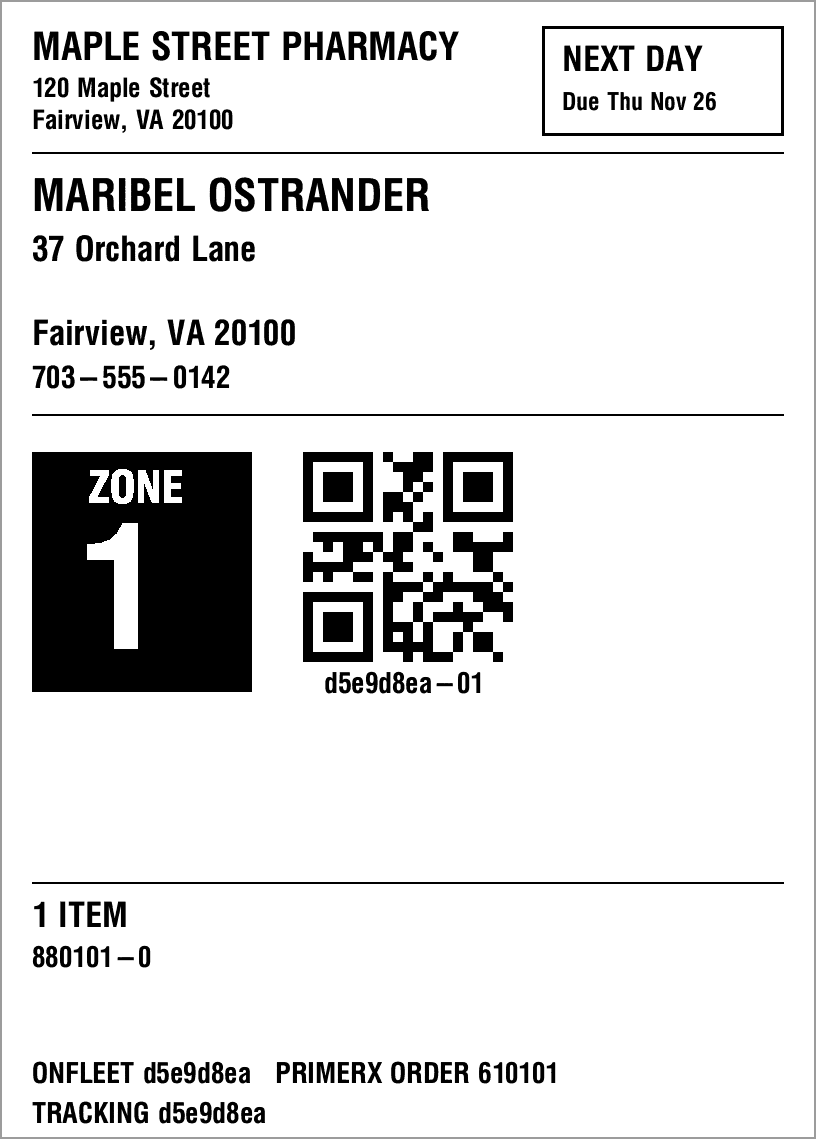
What is on the label
| Where | What it shows |
|---|---|
| Top left | Your pharmacy's name and address (the return address). |
| Top right | The service, SAME DAY or NEXT DAY, and the due date. |
| Middle | The patient's name, address and phone number. |
| Beside the barcode | The sort zone (see below). |
| Centre | A QR code with its code printed under it. This is the driver barcode. |
| Bottom | The number of items and every Rx number on the bag, joined with "/". The tracking number is added once there is one. |
| Order line | The courier's own order id, then the PrimeRx order number. If you combined orders, every order number is listed, joined with "/". |
| Footer | The last line of the label: the courier's name and TOTEPATH, in capitals, for example "YOUR COURIER NAME - TOTEPATH". |
When an order has more than one bag, the label also says which bag it is, for example "PIECE 1 OF 2".
If you combined orders into one bag, the label lists the Rx numbers of every order. See Bags and combining orders.
The sort zone
Some couriers give TotePath a list that matches each ZIP code to a zone. When your courier has one, the label prints the zone in a large black block to the left of the barcode, so a sorter can read it across a table.
If the delivery ZIP is not on the courier's list, the label prints an outlined box that reads "ZONE UNKNOWN". The bag still goes out. The box tells the sorter the zone is missing, not forgotten. Tell the courier's office so the ZIP can be added to the list. Only a Tenant Owner in the portal can edit it.
If the courier has no zone list, the label has no zone box.
The driver barcode
The QR code is what the driver scans in the courier's driver app to take the bag. Keep it clean and flat. Do not cover it with tape or put it across a fold.
If the label says "NO DRIVER BARCODE - SEE DISPATCH", TotePath had no barcode for that bag when it printed. Do not send the bag out without checking. First open the order from Released today and click Reprint labels. If the reprint still has no barcode, call dispatch.
Carrier labels
Orders sent by carrier print the carrier's own label, not this one. See Send an order by carrier.
Printer basics
- The printer name is shown on the Scan station after Printer:. A computer with no label printer chosen shows "saving labels to files (no printer chosen)". Labels do not print on paper until a printer is chosen.
- Labels are 4 by 6 inches, printed on a thermal label printer. Keep the right size loaded.
- To choose a different printer, click Change..., pick it from the list and click Save. The message "Printer saved." appears.
- Printing is done by the agent in the background. It works even if the Scan station tab is closed.
Print a test label
- Click Test label.
- A message says "Test label sent." and the printer prints one label.
If the message says "Test label failed", read the reason after it. Check that the printer is on, has labels and is connected, then try again.
Reprint a label
- Torn, smudged or lost label. On the Scan station, click Released today, click the order, and click Reprint labels.
- From the portal. A person with portal access can ask for a reprint from the order's drawer. The station prints it without you doing anything, and a message says "reprint requested by" that person's name.
If something goes wrong
- A red message says "LABEL PRINT FAILED". It names the printer and the reason. The order is already released and stays under Released today. Fix the printer (on, labels loaded, connected). The station prints it again by itself within about a minute, or open the order from Released today and click Reprint labels.
- The label is blank or cut off. Check the label size and reload the roll. Print a test label.
- The barcode will not scan. Reprint the label. If it still does not scan, tell the courier's dispatch office.
- More help: Station troubleshooting.