On this page
Help / Scan station
Bags and combining orders
One bag per order is the default. Change the Bags count, or combine several orders for the same patient into one bag.
For: Pharmacy techBags, and combining orders
Read the transcript
Leopold Fitchwick's order fills two bags. I scan it.
Bags says one. I change it to two.
Then I release and print. Two labels come out.
Next, Ingrid Pellworth has three orders waiting. I scan the first.
Combine orders.
Her other waiting orders are already listed.
I tick the one for the same address.
And this one, by mistake. It is a different address.
Add them to the bag.
The bag holds three orders. The one from the other address should not be here.
Take out.
It goes back in the queue on its own. Two orders, one bag.
Release and print. One label, with the Rx numbers of both orders.
Film: Bags, and combining orders. Watch it online at https://totepath.com/docs/station/bags-and-combining
An order is one PrimeRx order. A bag is the physical bag that goes out the door. By default one order is one bag, and it gets one label. This page covers the two cases where that changes: one order needs more than one label, or several orders for the same patient go in one bag.
One bag per order
When an order opens on the bench, Bags shows 1. Release it and one label prints. For most orders you do nothing with this field.
Change the Bags count
Use this when one order will go out in more than one physical bag.
- Open the order on the bench.
- Change Bags to the number you need (1 to 99).
- Click Release & print.
One label prints for each bag. When an order has more than one bag, the label also says "PIECE 1 OF 2" and so on, so the bags can be matched.
Bags can only be changed while the order is waiting for release. After release the field is locked.
Combine orders
Use this when the same patient has more than one order waiting and they will go out together in one bag. The result is one label that lists every Rx.
- Scan the first order so it is on the bench.
- Under the bag heading, click Combine orders.... The heading reads "One order in this bag".
- A panel headed Add orders to this bag opens. The search box already holds the patient's last name.
- The patient's other waiting orders are already listed. To find a different one, scan its Rx label or type an order number, Rx number or name and press Enter. Empty the box and press Enter to see every waiting order.
- Tick the orders to add. Clicking a row also ticks it. A row marked "(different address)" has a different address from the order on the bench, so check that you want it in this bag.
- Click Add to bag. The button reads "Add 2 to bag" when two are ticked. Cancel closes the panel.
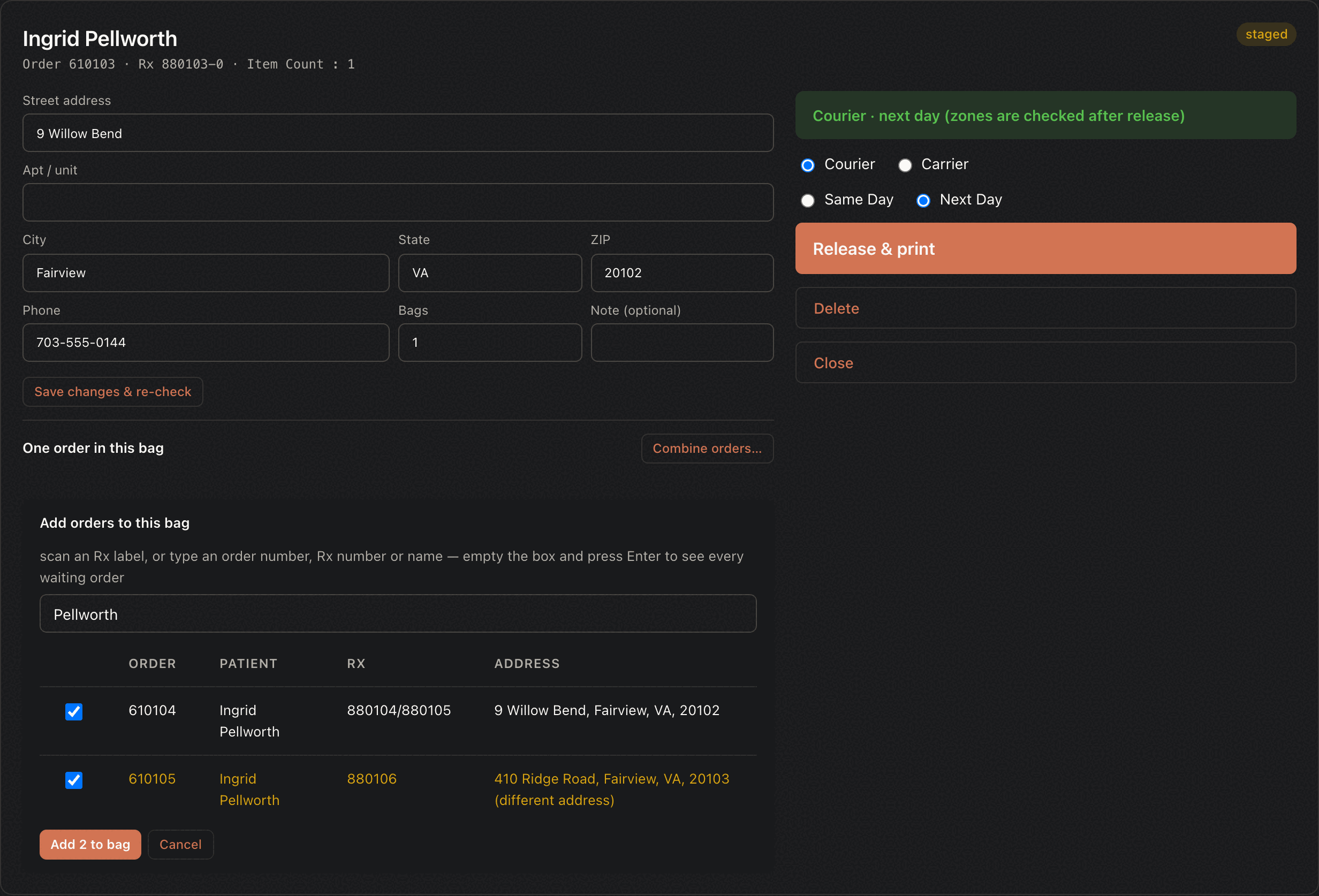
What you will see
- A message: "2 order(s) added. One label will name every Rx; PrimeRx gets the tracking number under every order."
- The bag heading changes to "In this bag: 3 orders", with a table of the orders added to it, each with its Rx numbers and a Take out button.
- The Orders list shows one row for the bag, for example "789 +2".
- Release & print releases the whole bag. One label prints, with the Rx numbers joined by "/".
- Scanning the Rx label of any order in the bag opens the whole bag.
Take an order out
Before release, click Take out beside an order to remove it from the bag. The message reads "Taken out; it is back in the queue on its own." The order is waiting again by itself.
After the bag is released, orders cannot be taken out.
When to combine
- Combine when one patient has several orders ready now and one bag will hold them all.
- Do not combine orders for different patients.
- Do not combine orders that will be handed over separately.
If something goes wrong
- The order you want is not in the list. It may not have arrived from PrimeRx yet, or it may already be released. Only orders waiting for release can be combined.
- A message says the server cannot combine orders. Tell your manager. TotePath needs an update on the server.
- You added the wrong order. Click Take out beside it before you release.
- You released with the wrong grouping. See Fixing mistakes.