On this page
Help / Start here
Accept your invitation and sign in
Set your password, set up two-step verification with an authenticator app, and sign in each day.
For: Pharmacy techSign in for the first time
Read the transcript
The courier's office set up my account, so there is an email waiting. I click Accept invitation.
First I choose a password.
Then I type it again.
Activate account.
Now TotePath wants a second step. Every account needs one.
I open the authenticator app on my phone and scan this QR code.
These recovery codes are for a lost phone. I keep them somewhere safe.
My phone shows a six digit code. I type it in.
Confirm and continue.
And I am in. This is my Dashboard, and it shows only my own pharmacy.
A recovery code works once, in place of the phone's code.
I log out. Next time, I start from the sign in page.
I type my email.
And my password.
The code on my phone changes every thirty seconds, so I need a fresh one.
I type the code from my phone.
Verify. I am back on the Dashboard.
Film: Sign in for the first time. Watch it online at https://totepath.com/docs/start/sign-in
You cannot create a TotePath account yourself. A Tenant Owner (usually the courier's office) invites you by email. You do the steps below once. After that you only sign in.
Every account needs two-step verification (also called two-factor authentication). You sign in with your password and a 6-digit code from an authenticator app on your phone. This protects patient information.
What you need
- The invitation email.
- A phone with an authenticator app, such as Google Authenticator, 1Password or Authy.
Accept your invitation
- Open the email with the subject You have been invited to TotePath.
- Select Accept invitation.
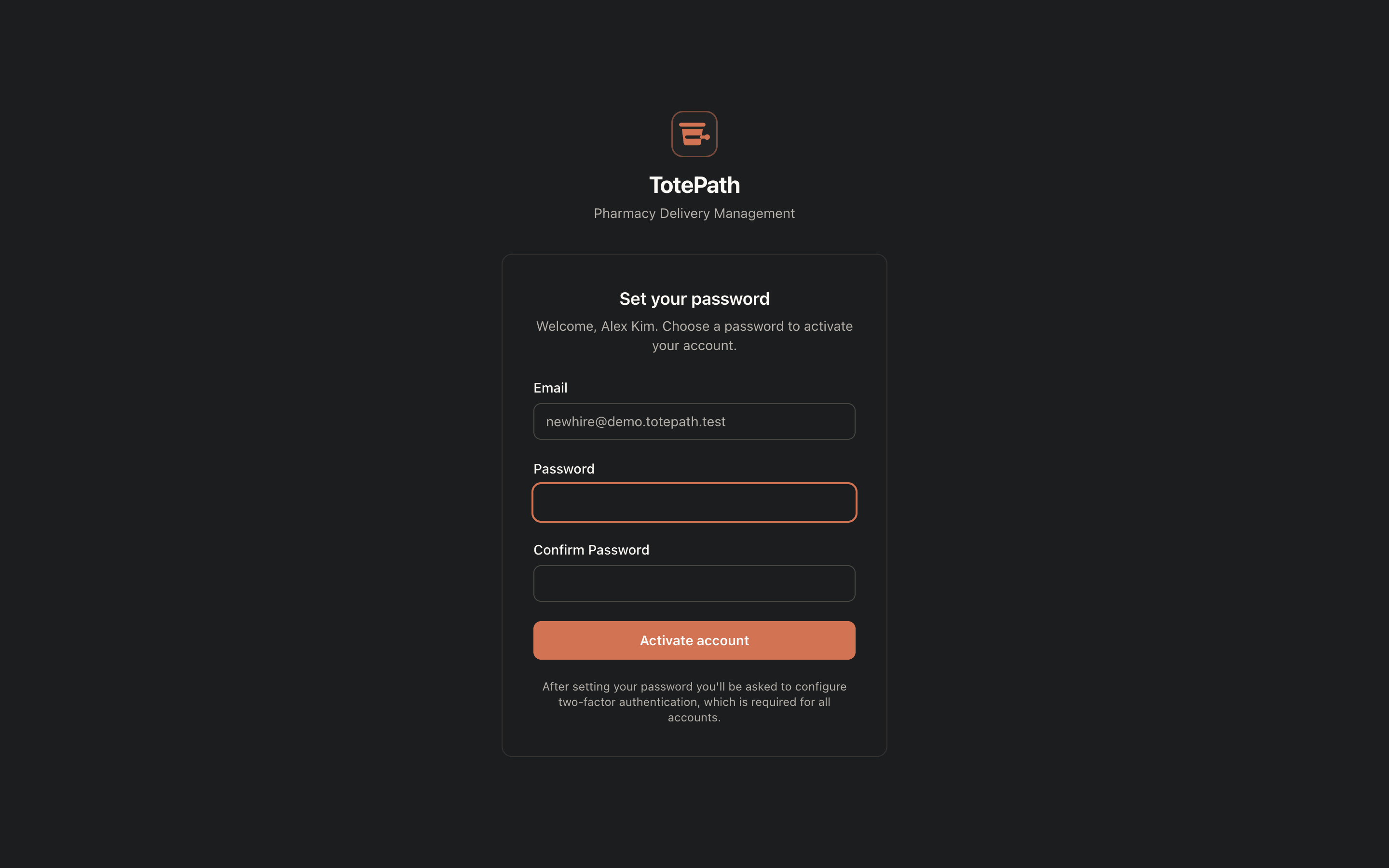
- On the Set your password page, type a password in Password and again in Confirm Password. Use at least 8 characters. The Email field is filled in for you and cannot be changed.
- Select Activate account.
Set up two-step verification
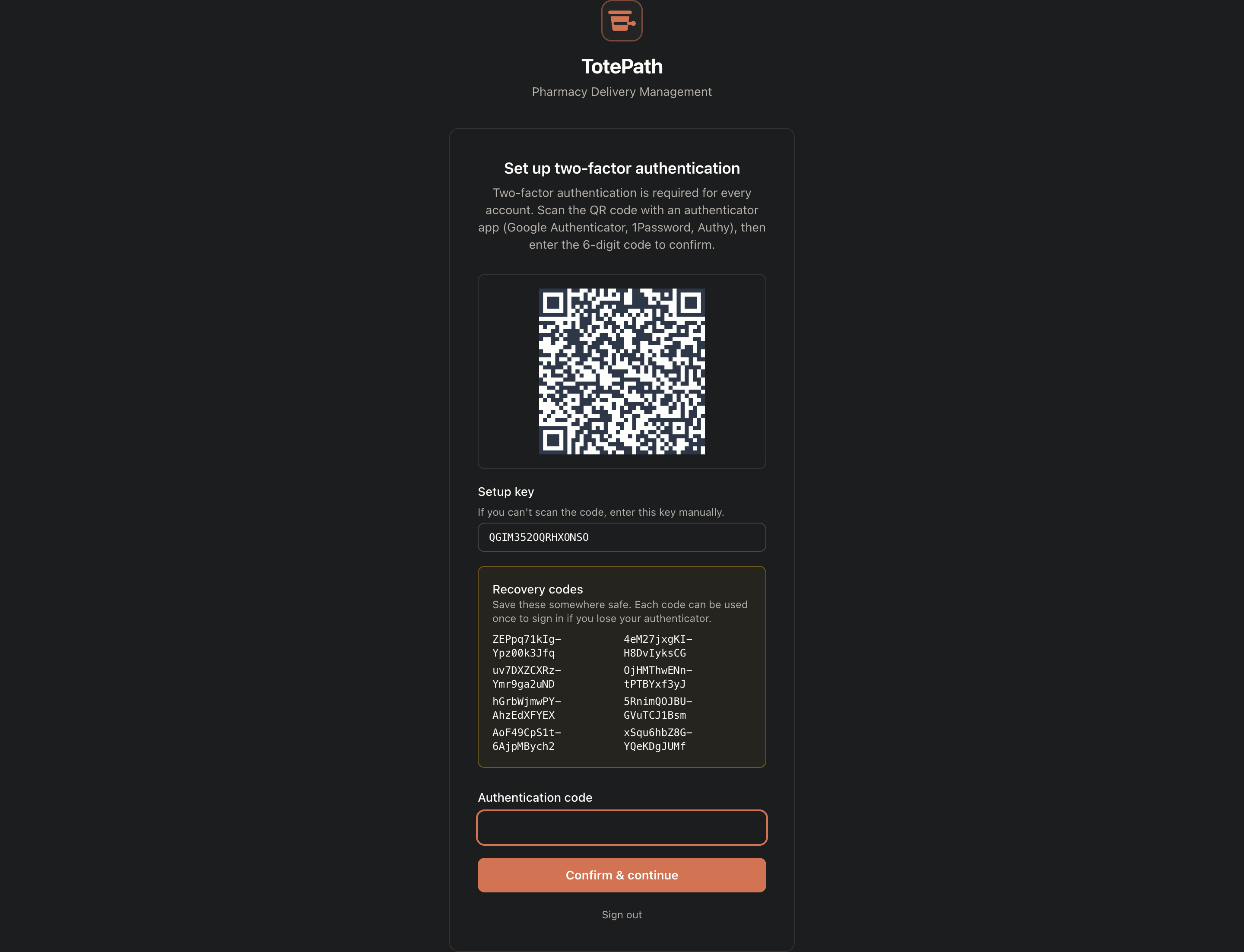
After you activate your account, TotePath takes you straight to Set up two-factor authentication. You cannot use the portal until you finish this page.
- Open your authenticator app on your phone and add a new account by scanning the QR code on the page.
- If you cannot scan the code, type the Setup key shown on the page into your app instead.
- Save your Recovery codes somewhere safe, away from your phone. Each code works once if you lose your authenticator.
- Type the 6-digit code from your app into Authentication code.
- Select Confirm & continue.
You land on the Dashboard.
If the code is wrong, the page says "The provided two factor authentication code was invalid." Check that your phone clock is correct, wait for a new code, and try again.
Sign in on later days
- Go to app.totepath.com. The sign-in page opens.
- Type your Email and Password. Select Remember me if you are on your own computer.
- Select Sign in.
- Type the 6-digit code from your authenticator app into Authentication code and select Verify.
You land on the Dashboard.
Forgot your password
- On the Sign in page, select Forgot password?.
- Type your email and select Email password reset link.
- Open the email, select the link, type a new password twice under New password and Confirm new password, and select Reset password.
This is the only way to change your password. There is no change-password screen inside the portal.
Lost your phone
On the code page, select Lost your device? Use a recovery code, type one of the recovery codes you saved, and select Verify. Each recovery code works once.
If you have no recovery codes, ask a Tenant Owner (usually the courier's office) to reset your two-factor setup. You will set it up again the next time you sign in.
The Security page
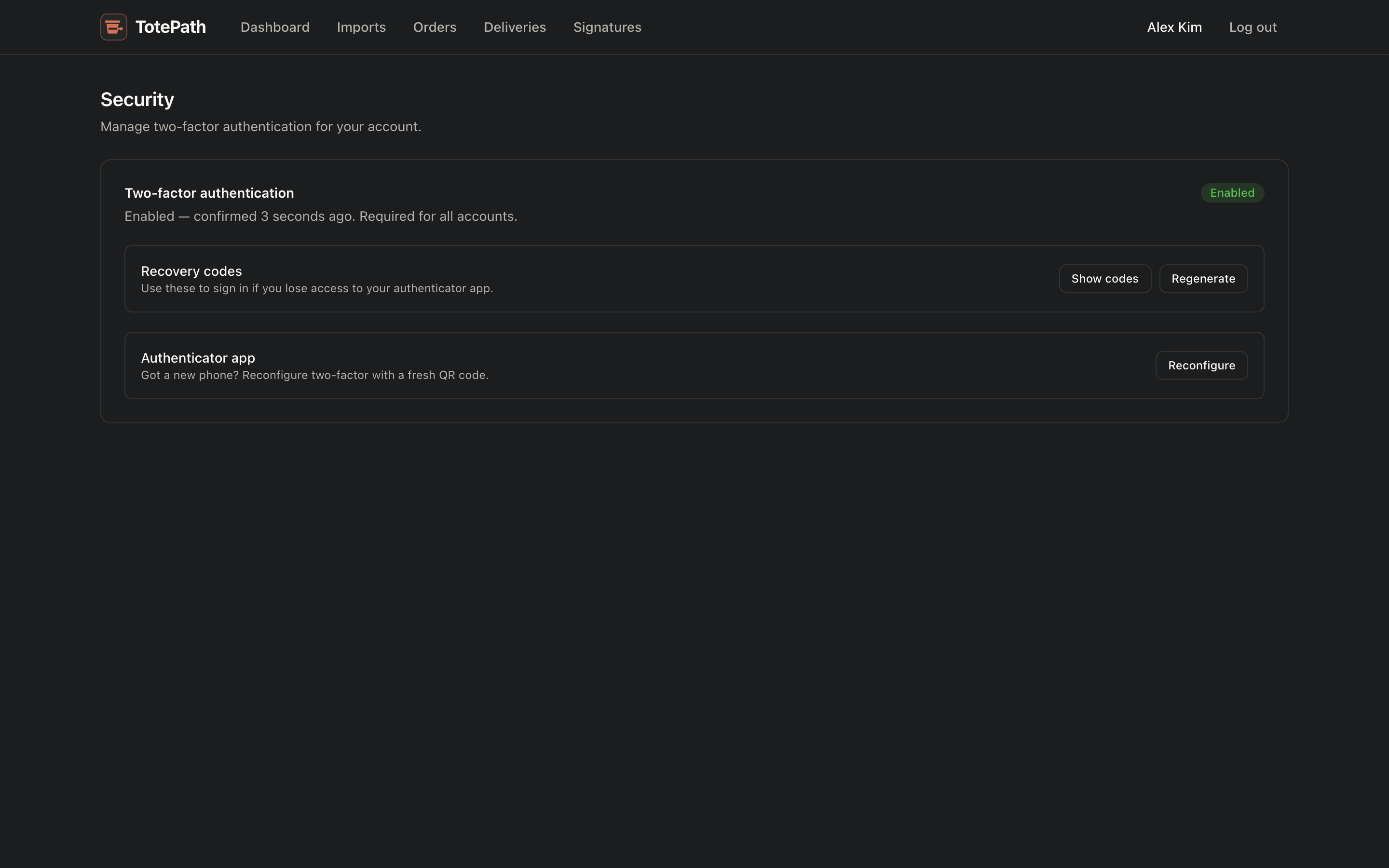
The Security page lets you manage your own two-step verification.
- Select your name at the top right of any portal page. There is no menu item called Security.
- Type your password on Confirm your password and select Confirm. TotePath asks for this before showing the page and remembers it for 3 hours.
- On Security you can:
- See whether two-factor is Enabled or Pending.
- Select Show codes to see your recovery codes, or Regenerate to get a new set. Regenerating makes the old codes stop working.
- Select Reconfigure when you get a new phone. You set up a new QR code before you can continue.
You cannot turn two-step verification off. You can only replace it.
If something goes wrong
| What you see | What to do |
|---|---|
| "This invitation link is invalid or has expired." | Ask for a new invitation. Use the newest email only. |
| "The provided two factor authentication code was invalid." | Wait for the next code in your app and try again. Check your phone clock. |
| You cannot sign in and have no codes | Ask a Tenant Owner (usually the courier's office) to reset your two-factor setup. |
| You forgot your password | Use Forgot password? on the sign-in page. |
More in Troubleshooting and FAQ.