On this page
Help / Web portal
Signatures
Track which patients have been asked to sign for a delivery by email, resend requests, and export the list.
For: Pharmacy managerSome deliveries need a patient signature as a record that the order arrived. If the driver did not collect one at the door, TotePath emails the patient a link to sign. The Signatures page shows every request, who has signed, and who still needs a nudge.
To see what the patient sees, read What the patient sees when asked to sign.
Which orders get a request
Only orders that came from PrimeRx with a patient email address get a request. The email on the order is how TotePath knows it is an insurance order. For an order with no patient email, the order panel says "No signature was requested: the order arrived without a patient email (not an insurance order)."
A request starts only once the order reaches Delivered. A manager can also create one by hand for a Delivered order that arrived without an email. See "A delivered order has no request" below.
How the request works
- The order is Delivered.
- TotePath waits a short while, 30 minutes by default. This lets a door signature from the driver arrive first.
- If the driver collected a signature, no email is sent. The request is marked Not needed.
- If not, the patient is emailed a link.
- If the patient has not signed, a reminder goes out every 7 days, up to 4 reminders.
Open the Signatures page
Click Signatures in the top bar. The page is headed Delivery Signatures.
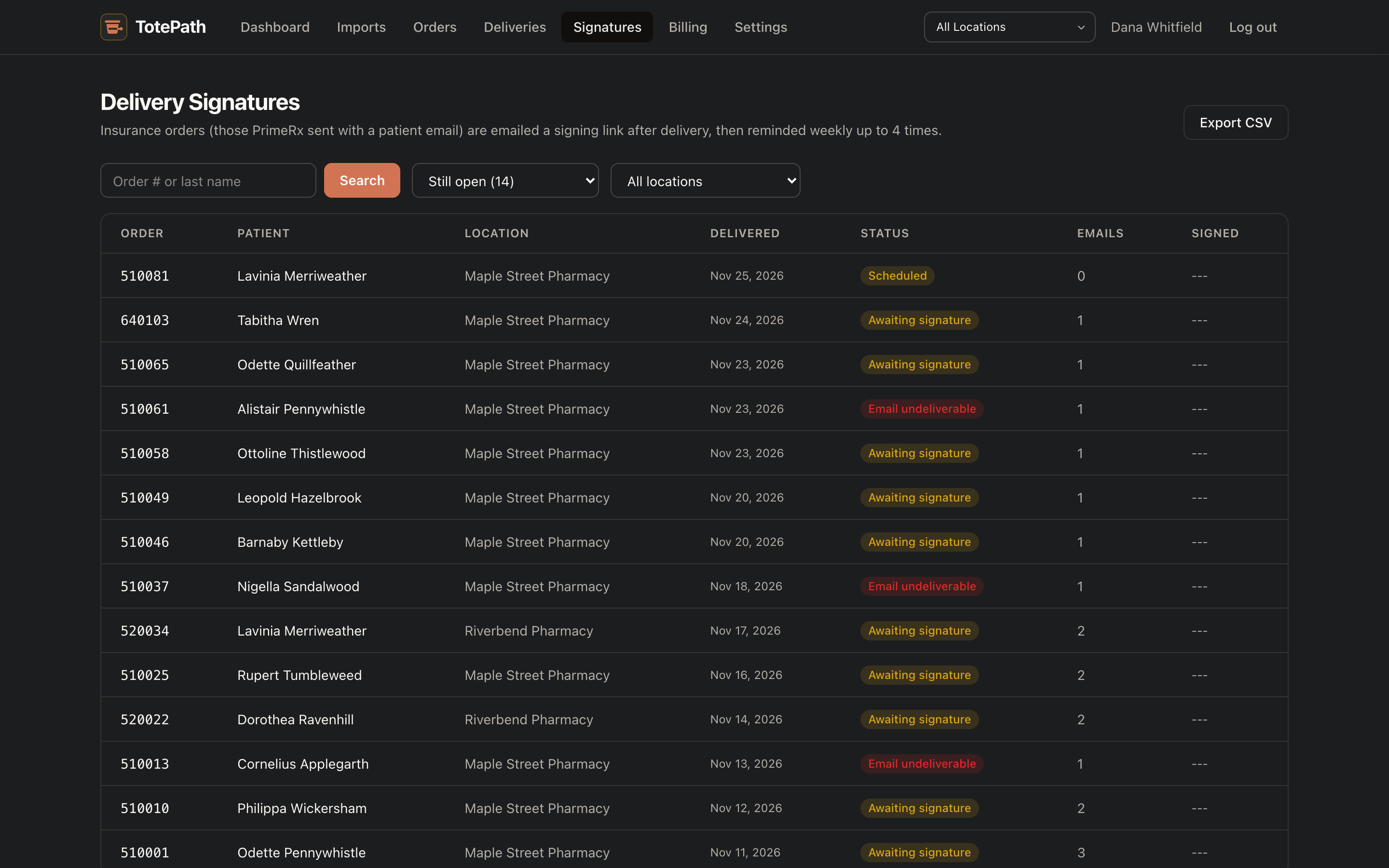
The columns are Order, Patient, Location, Delivered, Status, Emails and Signed. Click a row to open that order's order panel. The list shows 25 requests per page.
Statuses
| Status | Meaning |
|---|---|
| Scheduled | The order is delivered and TotePath is waiting out the grace period before the first email. |
| Awaiting signature | The email has been sent. Reminders go out weekly, up to 4. |
| Signed | The patient signed. |
| Email undeliverable | The last email bounced or was marked as spam. It needs a different address. |
| Not needed | The driver collected a signature at the door, or the delivery was undone. |
Filters
- Order # or last name: type an exact order number or the start of a last name, then press Enter or click Search.
- Status: the menu shows a count for each choice. It starts on Still open, which means Scheduled, Awaiting signature and Email undeliverable together. Choose All to see everything.
- Location: a menu starting at All locations. It appears only if you have more than one location.
Your status and location choices stay in the page address, so you can bookmark a filtered view.
Resend or fix a request
- Click the row to open the order panel.
- Scroll to Delivery Signature. It shows the status with a short explanation, the send history, and, once signed, the signature and "Signed electronically by (name) on (date)."
- To use the email address on the order, click Resend signature request.
- To use another address, type it in the box marked Different email (optional) first, then click the button.
- The order panel shows "Signature request sent." or "Not sent:" with a reason.
If an order has no request yet, the button reads Send signature request.
Use a different email when the status is Email undeliverable. The order panel says "The last email could not be delivered. Enter another address and resend."
Export the list
Click Export CSV at the top right. The file follows the status and location filters you have chosen. The search box is not applied to the export. It is named delivery-signatures- followed by the date. The columns are Order, Patient, Location, Delivered, Status, Emails sent, Last emailed, Signed, Signed by, Signer IP and Note.
What you will see
- A list that opens on Still open requests.
- A count beside every status in the menu.
- Rows that open the order panel.
If something goes wrong
"No signature requests match these filters." Change the status to All, or clear the search.
A delivered order has no request. It probably arrived without a patient email, or the driver collected a signature. Open the order and read the Delivery Signature note. If the order has no email and you want a signature anyway, type the patient's email into Different email (optional) and click Send signature request. This works only while the order is Delivered. For any other status, nothing happens.
The status stays Scheduled. The first email waits out the grace period after delivery, 30 minutes by default. Check again later.
"Not sent:" appears when you resend. The reason follows the colon. Check the email address for typos and try again.
The patient never got the email. Ask them to check spam. If the address on the order is wrong, resend to the right one with Different email (optional).