On this page
Help / Web portal
Proof of delivery
Find the photos, signature and driver report for a delivery, and download the PDF receipt.
For: Pharmacy techCheck proof of delivery
Read the transcript
A patient says she never got her bag. I check the proof of delivery.
I open Deliveries.
Each row is a route, one driver's day. I pick yesterday's, Morgan Reyes.
Every stop on the route is listed, pickups and drop-offs.
Here is Rowena Ashbury.
A photo of the bag at her door, and her signature.
PDF Receipt.
It downloads with the photo and the signature on the page.
Then Signatures. These are the e-signatures we ask insurance patients for after a delivery.
The list starts at Still open, the ones we are waiting on.
I switch to Signed. Bertram Quince signed the day we delivered.
Export CSV.
The file holds the signed ones, for our records.
Film: Check proof of delivery. Watch it online at https://totepath.com/docs/portal/proof-of-delivery
Proof of delivery is what the driver captured when the order reached the patient: photos, a signature if one was collected, and any notes. You use it when a patient or caregiver says "I never got my medicine" and you need to see what happened at the door.
Find the proof for one order
- Click Orders in the top bar.
- Type the tracking number, order ID, shipment ID or the patient's name, at least 3 characters, and press Enter or click Search.
- If the search matches one shipment by number, you go straight to its page. Otherwise click the row you want.
For more on searching, see Find an order.
Find the proof from a route
Use this when you want to look at a driver's day, or you know which route the order was on.
- Click Deliveries in the top bar. The page is headed Delivery History and each row is one route, one driver's day.
- Click the route you want, for example yesterday's.
- Scroll to Stops. It lists every stop on the route, pickups and drop-offs.
- Find the patient's stop card.
- Under Proof of Delivery on the card, look at the photo (Photo 1) and the Signature if there is one. Click a picture to open it full size.
- Click PDF Receipt on the stop card to download the receipt.
See Deliveries and routes for more about routes and stops.
What you will see on the order page
The page heading is the order number (for courier deliveries, the PrimeRx order number). Under it are the delivery date (with the time for imported history), the recipient and a status pill. Two sections matter here.
Delivery lists Status, Recipient, Address, Arrived, Departed and the delivery time window (Time Window Start and Time Window Finish). For courier deliveries, read Departed: it is when the driver completed the stop. Arrived is filled in only for older imported history. Under it, Proof of Delivery shows small pictures labelled Photo 1, Photo 2 and so on, and Signature if the driver collected one. Click a picture to open it full size in a new tab.
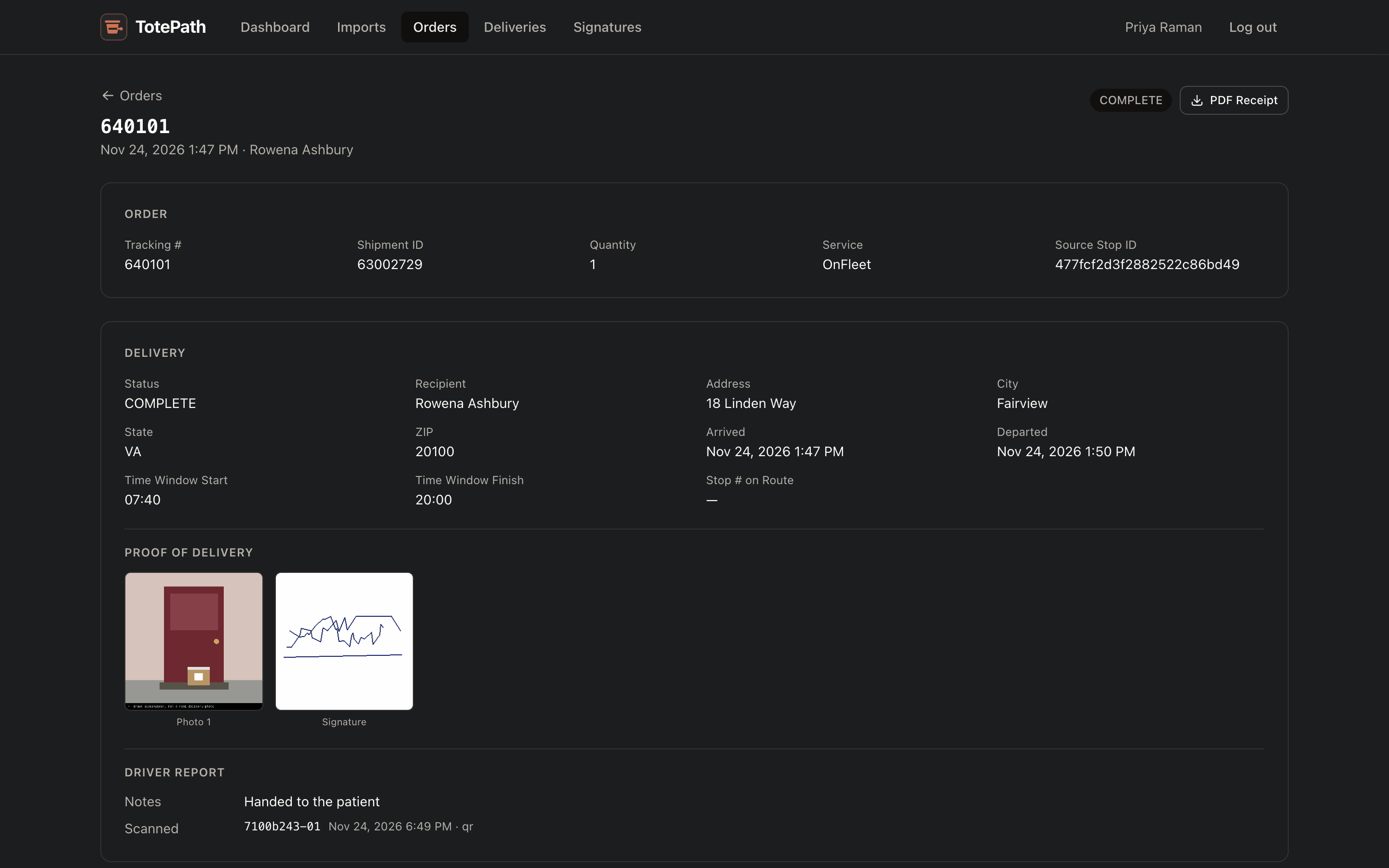
Driver Report appears when the driver left notes, a failure reason or scanned barcodes. See Deliveries and routes for what each line means.
Route names the route and driver and has a View full route link. Delivered Together at This Stop lists other shipments left at the same address.
Download the PDF receipt
The receipt is a record you can give to a pharmacy manager or keep with the order.
- Open the order page.
- Click PDF Receipt near the top.
You can also click PDF Receipt on a stop card on the route page.
The file is titled Delivery Receipt. It includes:
- The courier's name and logo.
- The delivery day, order number, arrival and departure times, route, driver, time window, recipient name and address, and status.
- An item table (Item Description, Item Number, Type, Quantity, Notes) that names the order, bag and tracking number.
- Field Data, with the delivery status and any Photo of product location images.
- Signature, if the driver collected one.
- Patient e-signature, if the patient signed by email afterwards. See Signatures.
Check patient e-signatures
The Signatures page is where you check the e-signatures TotePath asks insurance patients for after a delivery.
- Click Signatures in the top bar. The page is headed Delivery Signatures and the status menu starts on Still open, the requests still waiting on the patient.
- To see the ones that have signed, change the status menu to Signed.
- To keep the list for your records, click Export CSV at the top right.
The file contains the list under the status and location you have chosen at that moment: with Signed selected, it holds the signed requests. The search box is not applied to the export. See Signatures for statuses, resending a request and the columns in the file.
When a patient says it never arrived
- Find the order and open its page. Check the status pill and the Departed time, which is when the driver completed the stop. The status pill on this page shows the stop's own status, COMPLETE or FAILED.
- Look at Proof of Delivery. A photo taken at the door is usually the quickest answer. Match it to the stop's Departed time.
- Check Address. Confirm it is the address the patient expects.
- Read the Driver Report. Driver notes sometimes say where the bag was left.
- If you need to show your manager, download the PDF Receipt.
- If the pill reads FAILED, the driver did not deliver it. The Failed line gives the reason. The Dashboard shows the same order as Delivery failed. If the task was cancelled in OnFleet, the Dashboard shows Delivery failed but there is no stop or Failed line here. Open the order panel and read Delivery, then Failure.
- If the proof does not answer the question, contact the courier's office with the order number.
If something goes wrong
There are no photos. The driver may not have taken any, or the delivery may be older imported history. Check the Driver Report and the PDF receipt, then ask the courier's office.
A photo will not open. Try again. If it keeps failing, tell your manager.
The order is not found. It may belong to a location you cannot see, it may not be delivered yet, or it may be a carrier (ShipStation) order, which never appears on Orders. Check the Dashboard. See Dashboard. For a carrier order, use the Tracking link in the order panel's Delivery section.
The Dashboard or order panel says Submitted, not Delivered. The courier has the order but has not delivered it yet. The Orders page shows nothing for it, because an undelivered order has no record there. There is no proof to show yet.