On this page
Help / Web portal
Dashboard
See every order that has arrived from PrimeRx, what state it is in, and which bags are still on the shelf.
For: Pharmacy techYour Dashboard, and today's imports
Read the transcript
First thing in the morning, I open the Dashboard.
Four tiles. Total orders, Pending, Failed, and Delivered.
Pending is what is waiting to be released at the station.
Delivered counts everything released, so it runs ahead of real deliveries.
To find one order, I type a name, like Whitcombe.
Or I filter. Status, Submitted.
And Handoff, On the shelf. Bags the driver has not taken yet.
Now Imports.
These are the files the PrimeRx computer sent.
Completed is good. Orders is how many it made, and Skipped is rows it left out.
If a file Failed, I filter for it.
The Error column says what was wrong.
Film: Your Dashboard, and today's imports. Watch it online at https://totepath.com/docs/portal/dashboard
The Dashboard is the first page you see after signing in. It lists every order that has arrived from PrimeRx, newest first, so you can see what is waiting to be released, what is on the shelf for the courier, and what has been delivered.
Open it when you want to know "where is this order?" or "what is still waiting at my counter?"
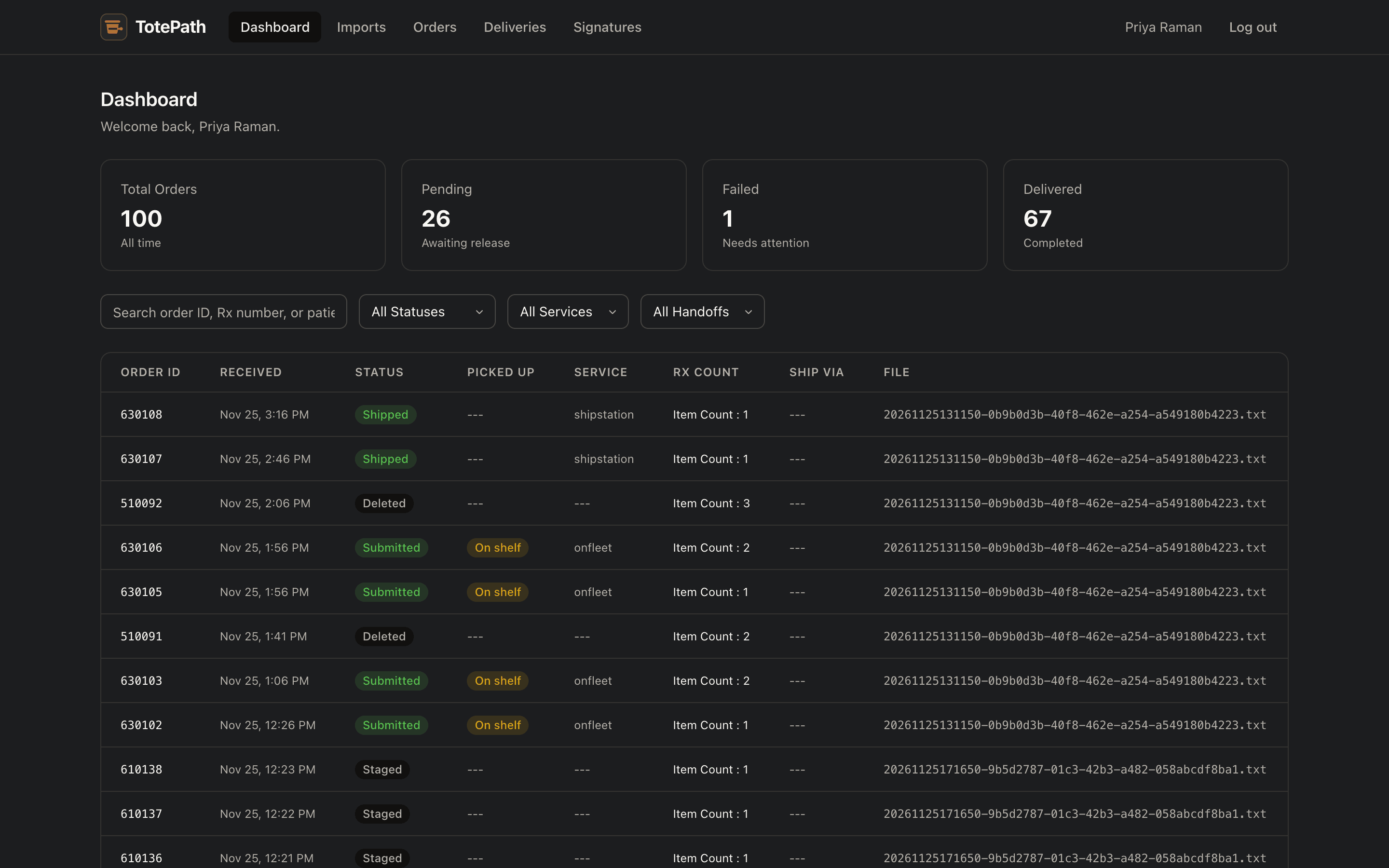
The four tiles
The tiles load a moment after the page appears. They show a dash until the numbers arrive. They count every order you can see for the location you picked, and they ignore the search and filters below them.
| Tile | Small text | What it counts |
|---|---|---|
| Total Orders | All time | Every order, in every status. |
| Pending | Awaiting release | Orders with status Staged: arrived from PrimeRx and not yet released. |
| Failed | Needs attention | Orders with status Failed. This number is normally 0. A release that does not go through leaves the order Staged with an error, so look at Pending too. |
| Delivered | Completed | Orders with status Submitted, Shipped or Delivered. |
The order list
The list has one row per order, 15 per page, with page links under the table.
| Column | What it shows |
|---|---|
| Order ID | The PrimeRx order number. |
| Received | When the order arrived in TotePath. |
| Status | Staged, Submitted, Shipped, Delivered, Delivery failed, Failed, Resolved or Deleted. |
| Picked up | The time the bag was scanned out at the counter to the courier. A yellow On shelf badge means the order was released but nobody has scanned it out yet. A dash means it does not apply. |
| Service | Shown in lowercase: onfleet (the courier's own drivers) or shipstation (a carrier). A dash means no service yet. |
| Rx Count | How many prescriptions are on the order. |
| Ship Via | The shipping method PrimeRx sent with the order. |
| File | The name of the file the order arrived in. |
Click any row to open the order panel. See Order details and actions.
What each status means
| Status | Meaning |
|---|---|
| Staged | Arrived from PrimeRx. Waiting for someone to release it at the scan station. |
| Submitted | Released to the courier, or sent on without a label yet. |
| Shipped | A carrier label has been bought. The bag may still be at the pharmacy until the carrier collects it. |
| Delivered | Delivery confirmed. |
| Delivery failed | The driver could not deliver, or the task was cancelled. |
| Failed | A release failed. You will rarely see this status. |
| Resolved | Closed by hand with Mark as Resolved. |
| Deleted | Deleted at the scan station while still staged. |
Search and filters
Above the list there is a search box and three drop-downs. The list updates as you type or choose.
Search
The box says Search order ID, Rx number, or patient…. Type at least 3 characters. With fewer than 3, the page shows Enter at least 3 characters and the list is not narrowed.
- Digits only is treated as a PrimeRx order ID or an Rx number. An order ID matches from the start, so typing
1234finds order IDs that begin with 1234. Type an Rx number by itself, without the refill number after the dash or slash. For example, for Rx#880301-0 on the label, type880301. If you type880301-0or880301/0, it is not all digits, so the search treats it as a patient name and finds nothing. - Anything else is treated as a patient name. Each word you type must match the start of the patient's first name or last name.
smifinds Smith.ann smifinds Ann Smith.
Drop-downs
| Drop-down | Choices |
|---|---|
| Status | All Statuses, then each status listed above. |
| Service | All Services, OnFleet, ShipStation. |
| Handoff | All Handoffs, On the shelf, Picked up. |
The three drop-downs and the search box combine. Changing any of them takes you back to page 1.
Common jobs
See what is waiting for release
- Open the status drop-down and choose Staged.
- Click an order to open it. Release it at the scan station, or, for the occasional order released from the office, use Release now in the order panel. The label then prints at the pharmacy's Scan station.
See what is still on the shelf for the courier
- Choose Submitted in the status drop-down.
- Choose On the shelf in the Handoff drop-down.
These are orders the courier could take that nobody has scanned out. Handoff to the courier explains the scan-out.
Find one order
- Type the order number, an Rx number, or the patient's name in the search box.
- Click the row.
For a carrier order, the order panel has the tracking number and the tracking link. To look up a courier order that has already been delivered, use Find an order.
What you will see
- The list shows No orders found. when nothing matches your search and filters.
- A new order appears with status Staged after PrimeRx writes its file and the agent on the pharmacy PC sends it. The pharmacy PC must be on and online.
If something goes wrong
- An order is not on the list. Check the drop-down at the top right that shows All Locations or a pharmacy name, clear the search and the three filters, and check the Imports page to see whether the file arrived. See Imports.
- An Rx search shows nothing. Check that you typed only the Rx number, with no dash or refill number after it. Then try the PrimeRx order ID.
- The search shows nothing for a name. Type the start of the first or last name. This search does not find letters in the middle of a name.
- A tile number looks wrong. The tiles ignore the filters. They count the whole location, not the filtered list.