On this page
Help / Administration
Station and agent settings
Change the pharmacy PC's folder, printer and timing from the portal, and read the health indicators.
For: OwnerThe TotePath agent runs on the pharmacy's computers. It picks up the PrimeRx export files, sends them to TotePath, and runs the scan station. You manage its settings in the portal, so nobody has to visit the pharmacy to change a folder or a printer. Use this page to change a setting, or to work out why the portal says an agent is offline or stuck.
Open Settings > Locations, click the pharmacy, and go to the Agents section.
Machines
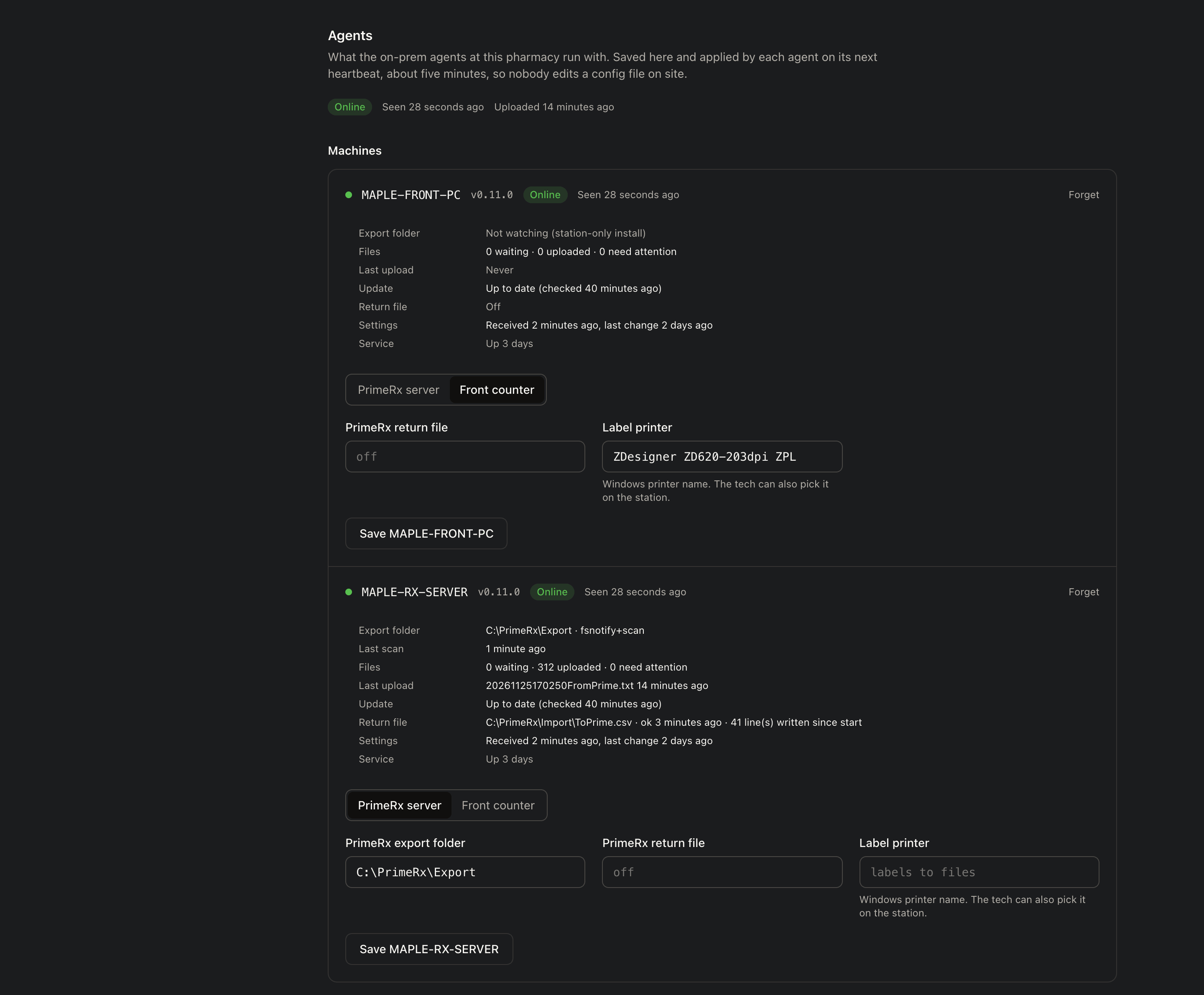
A pharmacy can have more than one computer running the agent. Each one appears as a block under Machines after its first check-in, with its computer name, its version, a status and Seen with the time of its last check-in.
If a machine has never checked in with this location's token, the page says: No agent has checked in with this location's token yet. Each machine appears here after its first heartbeat.
What each machine does
Choose a role for each machine:
| Role | Meaning |
|---|---|
| PrimeRx server | Watches the export folder. It uploads the PrimeRx files and can also run the station. |
| Front counter | Scan station only. It does not watch a folder. Use it for the PC with the scanner and label printer. |
Settings per machine
| Field | What it does |
|---|---|
| PrimeRx export folder | The folder PrimeRx writes order files to, for example C:\PrimeRx\Export. Not shown for a Front counter machine. A network share uses a UNC path such as \\server\share\folder. |
| PrimeRx return file | A file path where TotePath writes tracking numbers back for PrimeRx. Leave it as off unless TotePath staff have set this up with you. |
| Label printer | The Windows printer name. A technician can also pick the printer on the station. |
Click the machine's save button, which reads Save followed by its computer name. The page then says Saved. Applies at its next heartbeat.
Settings for every machine
Under Settings for every machine here:
| Field | What it does |
|---|---|
| Files picked up | Which file names the agent takes. Use a pattern such as *FromPrime.txt when other programs write to the same folder. Blank takes any .txt or .csv file. |
| Log level | How much detail the agent writes to its own log. Leave it at the default unless support asks. |
| Leave files in place after upload | Tick it when the export folder is a share that something else cleans up. Without it, the agent moves each uploaded file into a processed folder. |
| Folder scan | How often, in seconds, the agent looks for new files. |
| Stable checks | How many scans a file must stay unchanged before it is picked up, so half-written files are not sent. |
| Keep processed | Days to keep the processed folder before it is cleaned up. |
| Heartbeat | Seconds between check-ins with TotePath. |
| Update check | Hours between checks for a new agent version. |
| Return file poll | Seconds between return-file passes. |
Each field shows its default in brackets. Click Save agent settings. The page says Saved. Each agent applies this at its next heartbeat.
How a change reaches the pharmacy
- You save in the portal.
- The agent checks in with TotePath about every 5 minutes. This check-in is called a heartbeat.
- At the heartbeat, it receives the new settings and applies them. On the agent's own Dashboard tab the settings line says managed by TotePath.
To speed it up, someone at the pharmacy can open the agent's Dashboard tab and click Refresh settings now. The agent then says Heartbeat sent; settings from TotePath apply within a few seconds.
If a machine's Settings row shows Not applied here, it received a setting it could not use. Fix the value in the portal and save again. If the Settings row shows Restart the service to apply, restart the TotePath agent service on that computer.
Health and status
Each location and each machine has a status chip:
| Status | What it means |
|---|---|
| Online | The agent is checking in and files are moving. A note Update available means a newer version is out. |
| Never checked in | A token exists, but no agent has used it yet. |
| Offline | The agent has not checked in for 20 minutes. |
| Blocked | TotePath rejected the agent's upload token, so uploads have stopped. The page also shows a red line starting Halted: with the reason. |
| Folder unreadable | The agent runs, but cannot open the export folder. |
| Backlog | Files have been waiting more than 15 minutes and are not uploading. |
Under the status, each machine shows a health list: Export folder, Last scan, Files (how many are waiting, uploaded, or need attention), Last upload, Last failure, Update, Return file and Settings. The portal shows the same information the agent reports, under different names from the Health card on the agent's own Dashboard tab. Settings shows what settings the agent last received, or a problem applying them. Check-ins appears only when the last attempt to check in failed.
Folder unreadable
TotePath cannot be sent orders from this pharmacy until this is fixed, so treat it as urgent. It means the agent is running but Windows will not let it open the export folder, so nothing PrimeRx exports is picked up. The cause is usually one of these:
- The folder was moved or renamed. Check PrimeRx export folder above.
- The folder is on another computer and the agent service has no access to it. See "Export folder on another computer" in Install the TotePath agent.
- The path uses a mapped drive letter. A background service cannot see drive letters. Use the full
\\server\sharepath.
The portal shows the Windows error text and when it started. After you fix it, the chip returns to Online within a few minutes. If the problem lasted 15 minutes or more, TotePath also sends an "agent uploading again" email. A problem fixed sooner sends no email.
Offline
Offline means the machine that watches the export folder has not checked in for 20 minutes. New PrimeRx orders are not reaching TotePath. Common causes are that the computer is off or restarting, the agent service stopped, or the pharmacy lost its internet connection. See Alerts and emails for who is told.
A Front counter machine can be switched off at night without raising an alert.
Forget a machine
If a computer is retired, click Forget on its block and confirm. If it checks in again, it is added back.
If something goes wrong
- You saved but the pharmacy sees the old value. Wait for the next heartbeat, about 5 minutes. If it still has not changed, check that the machine is Online.
- The agent's own Dashboard says settings are managed by TotePath. That is intended. Make the change in the portal. For example, the Log level box on the agent is locked for this reason.
- Blocked. The upload token is wrong or was replaced. Open the Upload token section for this location, generate a new token, and enter it on every computer at the pharmacy, because the new token replaces the old one for all of them. The agent confirms it at its next heartbeat. See Install the TotePath agent.