On this page
Help / Administration
Locations
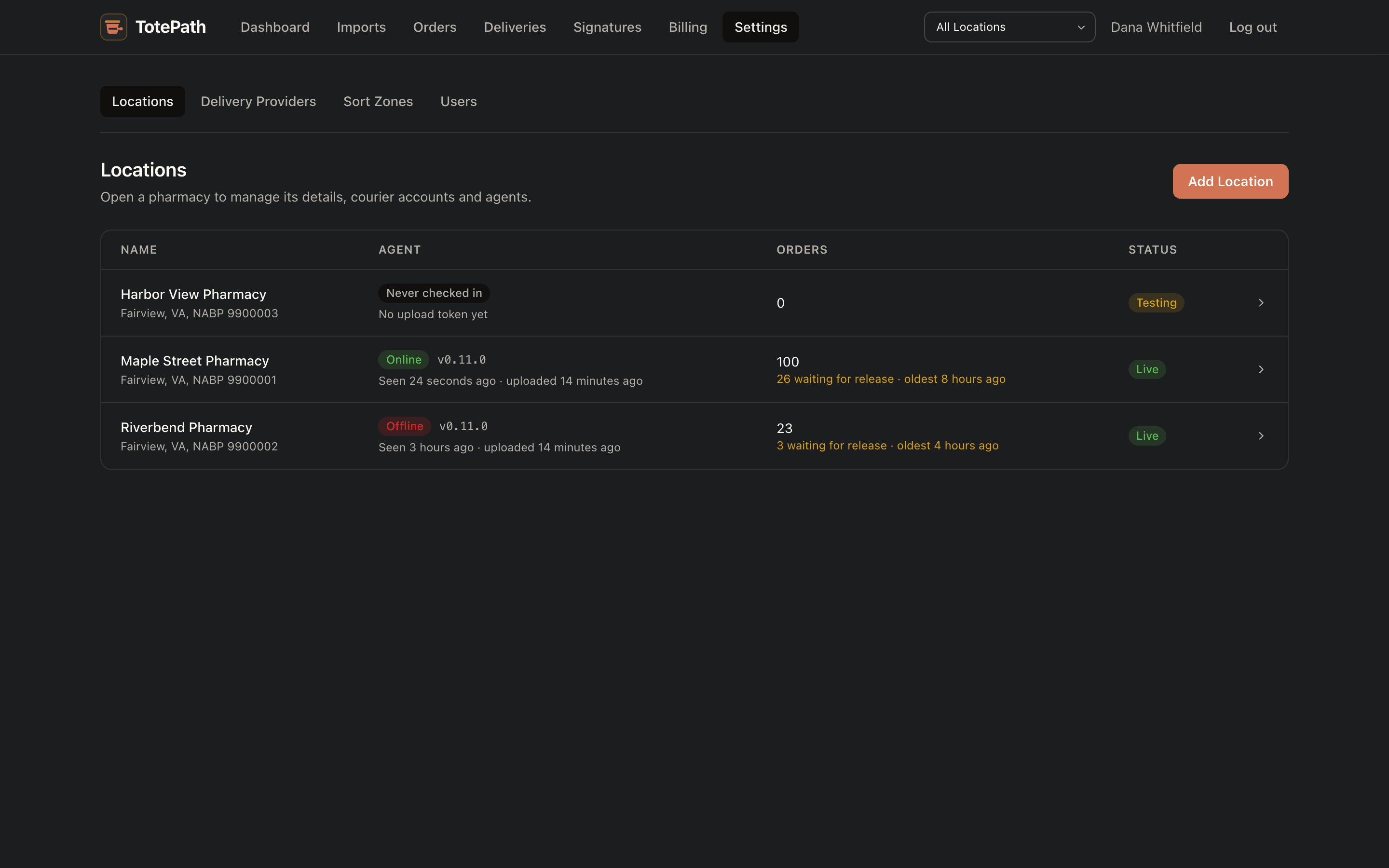
See every pharmacy your business serves, edit its details, and understand testing and live.
For: OwnerA location is one pharmacy. It has its own address, its own upload token, and its own PrimeRx computers running the TotePath agent. Use this page to check on a pharmacy, correct its details, or find its token and agent settings.
Click Settings in the top bar, then Locations. Only a Tenant Owner can see this page.
The Locations list
Each row shows:
| Column | What it tells you |
|---|---|
| Name | The pharmacy, its city and state, and its NABP number. |
| Agent | Whether the agent is checking in. See Station and agent settings. |
| Orders | The number of orders, and how many are waiting for release and for how long. The waiting note turns yellow after 4 hours. |
| Status | Live, Testing or Inactive. |
The Download agent button on this page gives you the signed Windows installer. See Install the TotePath agent.
Open a location
Click the pharmacy's name. The page has sections down the left: Pharmacy, Delivery, Upload token, Agents and Live. The Live stop opens the section titled Going live. Change what you need, then use the bar at the bottom. It shows Unsaved changes with Discard and Save changes. A green Changes saved confirms it.
Pharmacy
| Field | Notes |
|---|---|
| Name | The pharmacy's name on delivery receipts. |
| NABP / NCPDP # | Exactly 7 digits and unique in your business. It is the first 7 digits of this pharmacy's PrimeRx tracking numbers. |
| Active | Clear it to take the location out of use. The list then shows Inactive. |
| Street address, City, State, ZIP, Country | The pharmacy's address. State is 2 letters. |
| Pharmacy email | Patients' replies to delivery signature emails go here. |
| Pharmacy phone | Shown to patients on the signature email and page. |
Delivery
| Field | Notes |
|---|---|
| OnFleet client ID | This pharmacy's account inside the courier's OnFleet. TotePath staff normally fill it in. |
| Same-day cutoff | A time. Orders released after this local time go next day. If blank, the page shows the default that applies. |
| ShipStation warehouse ID | This pharmacy's ship-from address for carrier labels. TotePath staff normally fill it in. |
| Carrier accounts | Which carrier account this pharmacy's labels are bought on. See Delivery providers. |
Upload token and Agents
The token is the password the agent uses to send this pharmacy's orders. See Install the TotePath agent for how to use it, and Station and agent settings for the Agents section.
Testing and live
A new location starts in Testing. TotePath staff take it Live when the pharmacy is ready. As a Tenant Owner you see a note in the Going live section telling you to contact your TotePath administrator when you are ready.
Testing mode changes these things:
- Patient signature emails go to test recipients, not to patients. Use this for a dry run.
- TotePath staff can reset the location's orders to clear out test data. They cannot after the location goes live.
- No waiting-order emails. The 4-hour email about orders nobody released is only sent for live locations. See Alerts and emails.
Testing mode does not change how orders are released. The courier still receives real recipient details, so a dry run behaves like the real thing. Release only test orders at a testing location, because the courier will be asked to deliver them.
When a location is Live, the page says Live since a date. From then on:
- Patients get delivery signature emails when their order arrived with a patient email.
- The location counts toward the per-location fee on Billing.
If something goes wrong
- The NABP number is rejected. It must be exactly 7 digits and not used by another location in your business.
- The Agent column says Never checked in. The installer has not been run, or it has the wrong token. See Install the TotePath agent.
- You cannot open Settings. Only Tenant Owners can. Ask an owner for help.